Documentation · by role
The same reference, organised by who uses it
Every feature from the full documentation below, regrouped around the seven roles CrewSense ships today — what each role can and cannot do, and exactly which screens show up for them. Plan badges (All plans Growth+ Professional+ Enterprise Coming soon) match the category view exactly.
View the same reference by category →- Company profit — revenue against materials, labour and staff salary
- Margin by district, so you know where to bid next
- What the last completed job actually earned
- Needs Attention — over budget, unbilled, overdue, unpaid payroll
- What the company pays each admin and engineer
- Appoints admins district by district
- Signs off admin leave; everything below is settled without them
Everything an admin can do is still one tap away.
14 features & screens for this role
Owner Console — Company Health
EnterpriseReplaces the operations dashboard for the Owner with five screens answering: is the business making money, which projects are actually worth it, what does the team cost, is the business growing, and what needs attention right now?
- Company Health — revenue, cost and margin for a selected period, counting materials, labour and staff salary as cost (unlike every operational screen), plus a revenue-vs-cost trend and salary paid by role.
- Project P&L / Profit by project — for every project over its whole life: the estimate, what the client has paid, everything spent (materials, purchases, petty cash and salary) and the profit made, as a bar chart plus totals and a sortable table. Filter by project (one or several), district, project engineer or site engineer, and the chart and totals follow — so "how much did Karthik's sites make?" is one tap. A loss shows in red.
- People & Payroll — a standing monthly salary per salaried staff member, what's been paid this month vs outstanding, and a one-click way to record a payment.
- Growth — this period against the last one: money collected, material spend vs usage, labour and contractor wages, and new projects by contracted value — company-wide and by district.
- Needs Attention — budget risk, schedule slippage, leftover materials, unbilled cash flow, unrecorded payroll and spare capacity, computed straight from the ledgers rather than an AI model, so it keeps working even if the Advisor doesn't.
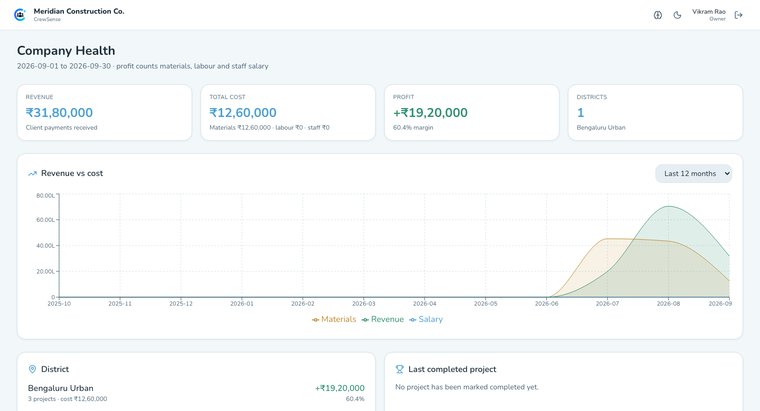
Company Health — revenue, cost and margin for the selected period
Projects & Sub-Projects
All plansEvery project tracks location, budget, dates, documents, finances and progress in one place, and can carry up to 10 photos of the site or building — add them while creating the project or later; the first becomes the picture on the project's card in place of the default icon (your client sees it too), and every photo is encrypted at rest like any other upload. A large job can be split into sub-projects — full projects in their own right, each with its own budget, project engineer, site engineer, tasks, BOQ, DPR and materials — without consuming extra project slots on your plan. A sub-project inherits only its parent's client, branch and district; everything else about it runs independently. The parent shows a budget-allocation card — Total, Allocated (the sum of its sub-projects' own budgets) and Unallocated — so splitting a budget across sub-projects stays visible at a glance, and sub-projects can be dragged to reorder.
Full write-up →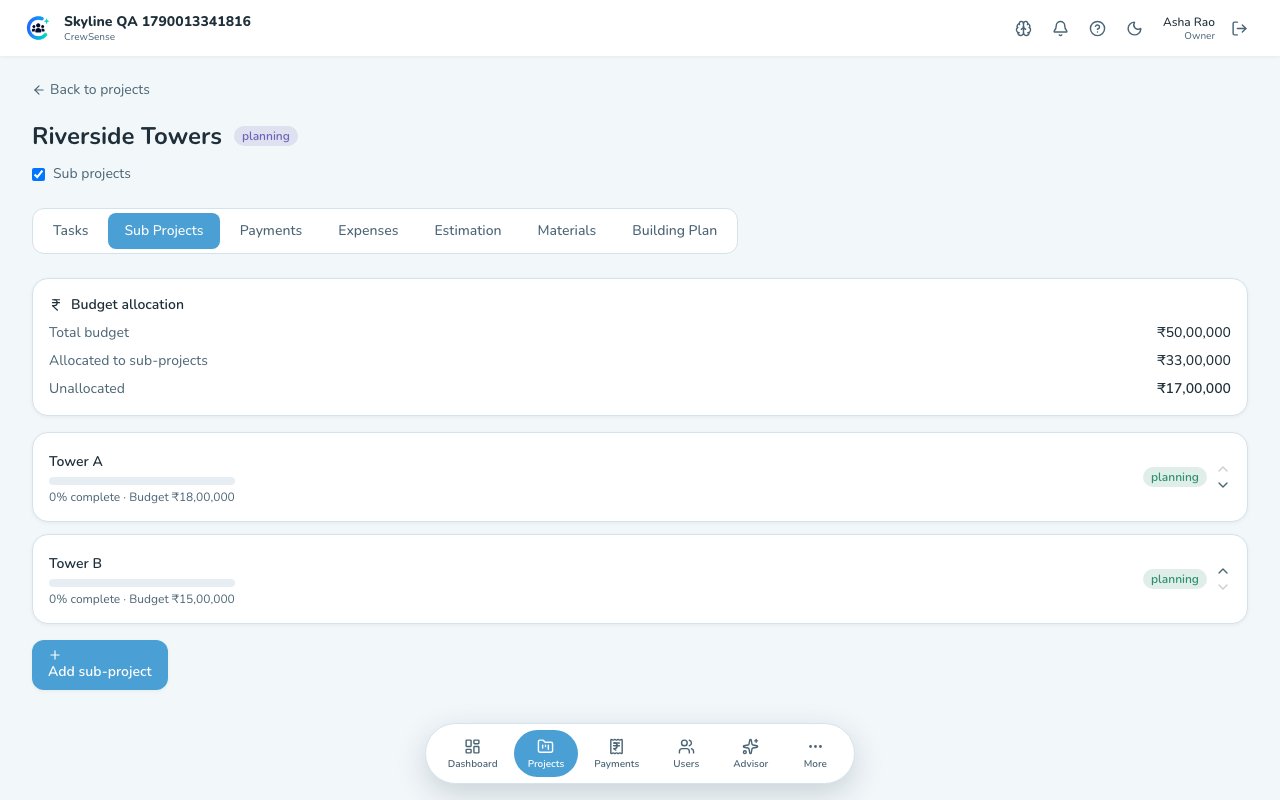
Budget allocation across sub-projects, each with its own budget and progress
Live Site View
All plansEvery project card shows a small animated drawing of its building site, built floor by floor from the work your team has logged — no separate setup. Each floor named in your tasks becomes a storey, and each sub-task shows on it: columns rise with framing, the slab is poured, bricks fill in with masonry, pipes, wiring and tiles appear, paint creeps up the walls, and a floor gets a tick when it passes inspection. A crane carries what the busiest floor needs, workers do their trade where work is in progress, and a site board at the gate shows the % complete and spend against the estimate — red with the amount over when it goes over budget. A paused project freezes and greys out behind a barrier; a finished one stands at dusk with its lights on. Open the project for a larger view with every floor labelled and a line on what is happening where.
Full write-up →Project Estimates
All plansBuild a costed, line-by-line estimate before a project exists, or straight from within one. Estimates are always fully editable — add, price and remove line items any time, with net/GST/gross totals kept in sync automatically as you go. Attach a standalone estimate to a real project once the job is won, and its numbers become the numbers you build against — a project-attached estimate can also seed a BOQ directly. Export any estimate as a branded, watermarked PDF to send to a client. How many estimates you can keep depends on your plan.
Full write-up →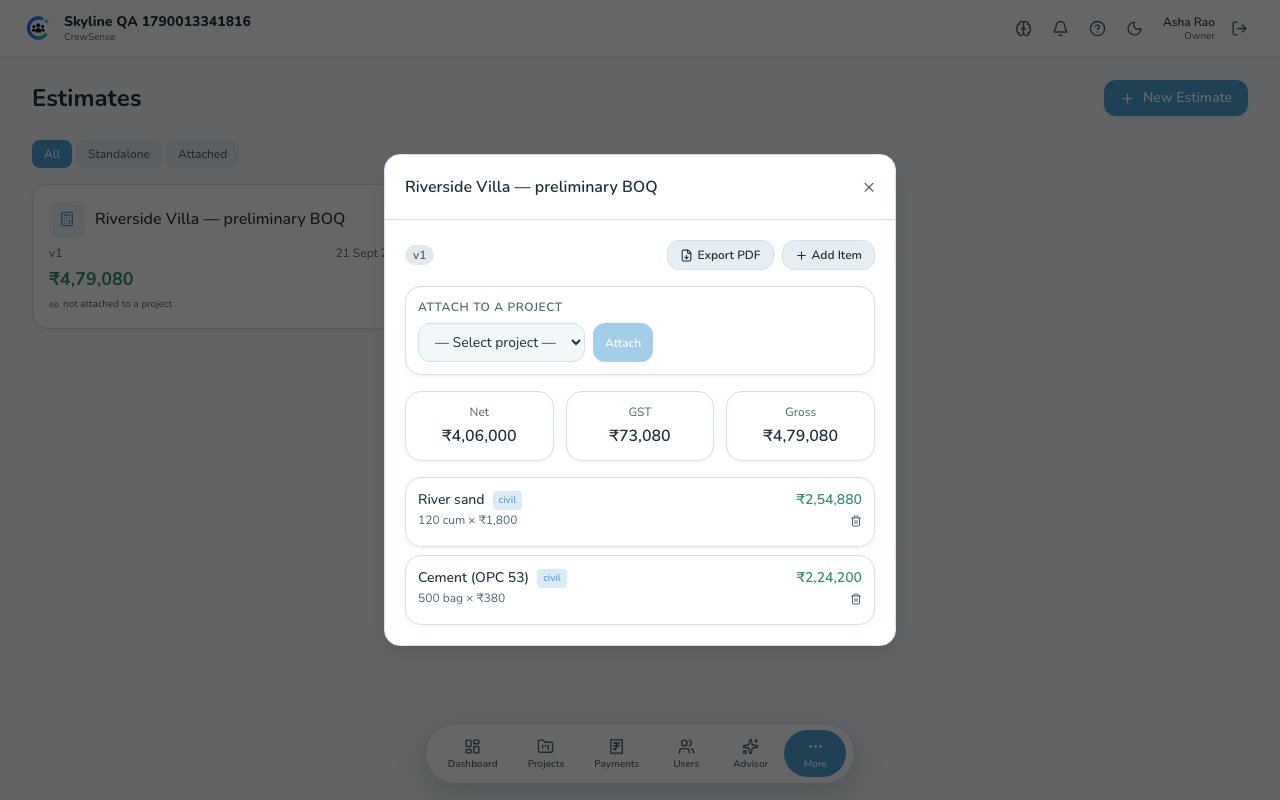
A line-item estimate — always editable, with one-tap PDF export
Salary & Payroll
Growth+Staff, Contractor and Casual payroll in one place, filterable by month/week/custom range, with per-worker gross/advances/net-payable drill-downs priced using the wage rate effective on each attendance date. Site engineers only ever see payroll for attendance they personally recorded.
Thumbprint receipts (Professional and above): turn them on and each labourer confirms they received a wage payment or an advance by scanning their thumb (or face) as the money is handed over. The scan is kept with the payment, and the Payments list shows "Receipt confirmed by thumbprint". Workers who haven't been enrolled are still paid — the payment just shows it was recorded without a scan.
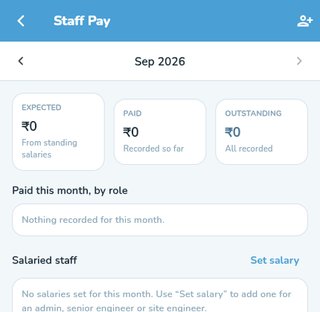
Staff Pay screen for admins, senior and site engineers
Staff Leave & Approvals
EnterpriseAdmins, project engineers and site engineers can raise a leave request and track its approval; owners/admins review and approve or reject with a note. Separate from daily labour attendance — this is for the company's own salaried staff.
Full write-up →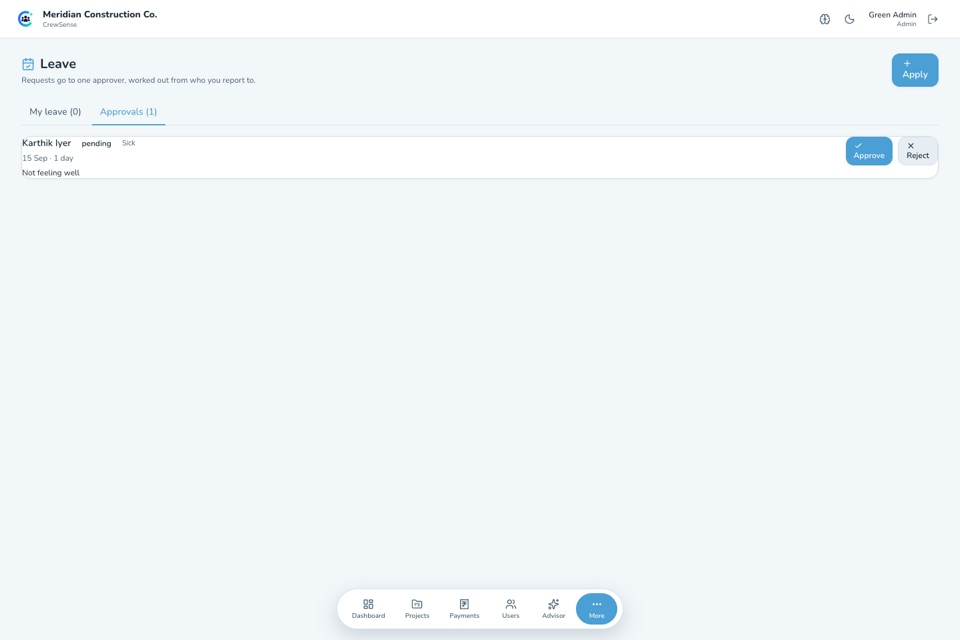
A pending request, routed to its resolved approver, ready to approve or reject
My Company — Adding Team Members
All plansFour tabs: Details (org profile, logo, force-logout-all-members), Members — add a new Admin, Project Engineer, Site Engineer or Labour with a name, phone and email; Admins, Project Engineers and Site Engineers are also assigned one or more districts, and salaried roles can optionally carry Aadhaar/PAN for the record. The same list is also where you reset a member's password, force them out of an active session, or grant one of the additive BOQ Roles. Skill Wages sets the direct + contract wage tables, and Configuration covers catalogues, expense controls, the Advisor toggle and task verification.
Full write-up →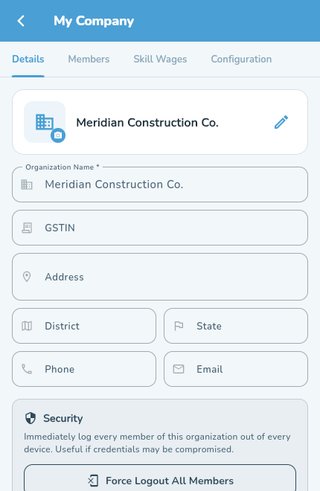
The My Company screen — Details, Members, Skill Wages and Configuration tabs
Subscription & Plan Gating
All plansEvery organisation starts on a 28-day free trial of the plan chosen at signup, with that plan's features and limits. Upgrade via Razorpay checkout (one-time or auto-pay). Moving to a smaller plan needs your usage within its limits first — the app lists exactly which team members or projects are over. Once a trial or subscription lapses, admins are guided to renew and non-admins see a plain "ask your admin" message rather than a broken app. Invoices & receipts lists every payment you have made to CrewSense — pick a month, a quarter (financial-year quarters, so Q1 is April–June), a year or a financial year, and download one PDF for the whole period or any single invoice. It stays open even after a plan lapses.
Full write-up →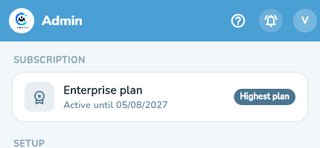
Current plan and validity shown in the Manage hub
CrewSense Advisor
Growth+A conversational AI over your organisation's own live data — not a single model call, but specialist agents (Project, Labour, Procurement, Finance, Commercial, Document, Planning, Knowledge, Reporting, Admin, Memory, and Help — which answers "where is that button?" from this guide) routed to by a question and merged into one answer. It can chart comparable figures inline, and a handful of tools can propose a change (update a task, raise a request) that only takes effect after you tap Confirm. Chat is Admin/Owner only. Each question spends one Advisor credit: Growth gets 15 a month, Professional 15 a day and Enterprise 25 a day, counted per organisation.
Full write-up →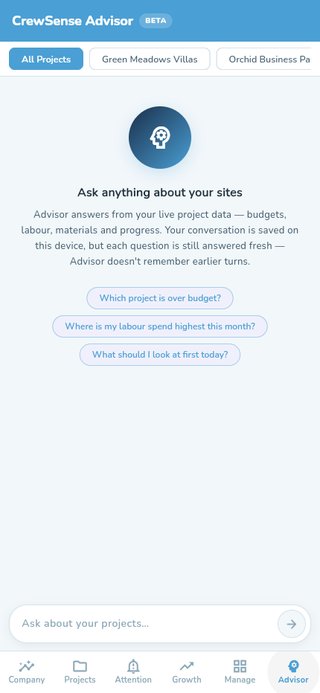
CrewSense Advisor chat with suggested starter questions
Today's Agenda
Growth+A proactive digest shown under the greeting on Home — "what needs your attention today" — generated once per day (plus up to 2 manual refreshes) by the same agent pipeline as the Advisor. Project Engineers and Site Engineers get it too, scoped strictly to their own assigned projects.
Full write-up →AI Risk Alerts & Decision Memory
Professional+A daily 11:00 AM job scans every active project for four kinds of genuine risk — task delay, material shortage, project delay, cost overrun — and raises a notification, deduplicated with a 4-day cooldown. Decision Memory lets the Advisor recall and search past logged decisions and project history.
Full write-up →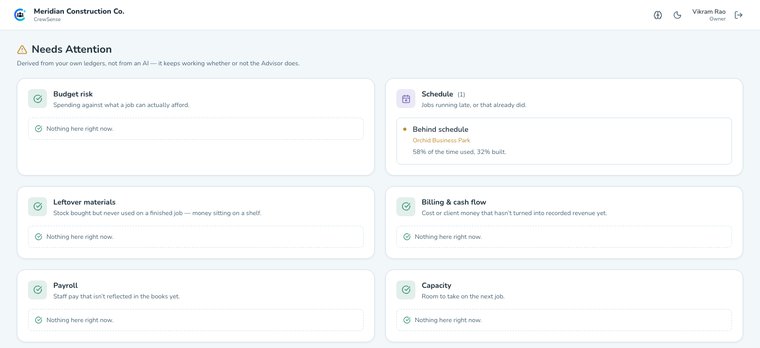
Needs Attention — a behind-schedule alert surfaced automatically
Material Vendor Marketplace
Coming soonA platform-wide, district-filtered directory of verified material vendors — raise a deal, negotiate a single counter-offer, and track the order through to delivery per line item, separate from your own organisation's material catalogue. The underlying deal/negotiation workflow exists, but the marketplace entry point in the app is currently shown as "Coming Soon" while the vendor network is built out.
Full write-up →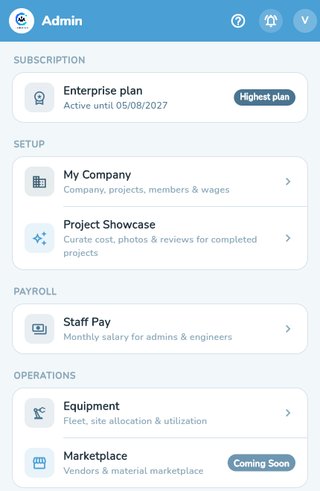
The Manage hub — Marketplace is marked Coming Soon
Roles & Accounts
All plansSeven roles, each with its own navigation and permissions: Owner, Admin, Project Engineer, Site Engineer, Labour, Client, and Marketplace accounts (Material Vendor / Manpower Contractor). On top of these, five additive permission grants (Project Manager, Quantity Surveyor, Billing Engineer, Accounts, Equipment Manager) unlock specific commercial actions without changing anyone's base role.
Full write-up →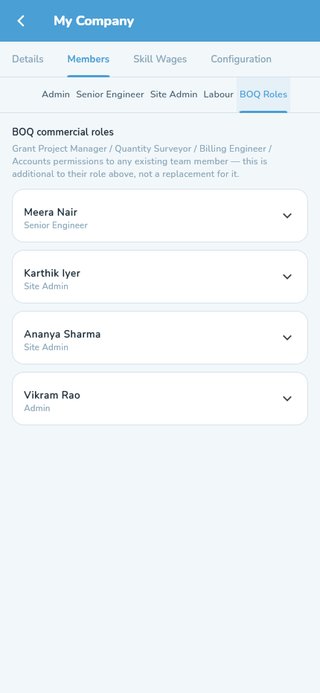
BOQ Roles grant screen showing additive permissions per member
Two-Step Sign-In
All plansAfter your password (or Google, or fingerprint quick-login), CrewSense emails a 6-digit code to your account's address and asks for it before signing you in. Owners and Admins always use it; anyone else can turn it on for themselves. On the phone app it is asked once per phone — tick "Don't ask again on this device" — while a browser asks every time. Codes last 10 minutes, a new one can be sent after 30 seconds, and five wrong tries start the sign-in again. The email has a Copy code button. Changing your password makes your other devices ask again.
Full write-up →- One approvals queue — materials, petty cash, procurement, DPR
- Verifies payments made on site, with the receipt attached
- Payroll from attendance, plus monthly salary for staff
- Approves leave for the project engineers who report to them
- Projects, members, wage rates and company settings
- AI Advisor over the company's own data
Scoped to their districts — an admin for one region does not see another's projects.
36 features & screens for this role
Roles & Accounts
All plansSeven roles, each with its own navigation and permissions: Owner, Admin, Project Engineer, Site Engineer, Labour, Client, and Marketplace accounts (Material Vendor / Manpower Contractor). On top of these, five additive permission grants (Project Manager, Quantity Surveyor, Billing Engineer, Accounts, Equipment Manager) unlock specific commercial actions without changing anyone's base role.
Full write-up →BOQ Roles grant screen showing additive permissions per member
Signing Up
All plansTwo live registration paths: Construction Company (creates an organisation + Admin account, with a 28-day free trial on the plan you choose — Starter, Growth or Professional; Enterprise is set up with our team) and Client / House Owner (a standalone account with no organisation, used to track a build from the buyer's side). Both support signing up with Google. The company sign-up also asks what kind of work you do — that sets your starting organisation type, which you confirm later in your company settings. Manpower Contractor and Material Vendor self-registration exist behind the scenes but are marked Coming soon and not reachable from the sign-up screen yet.
Full write-up →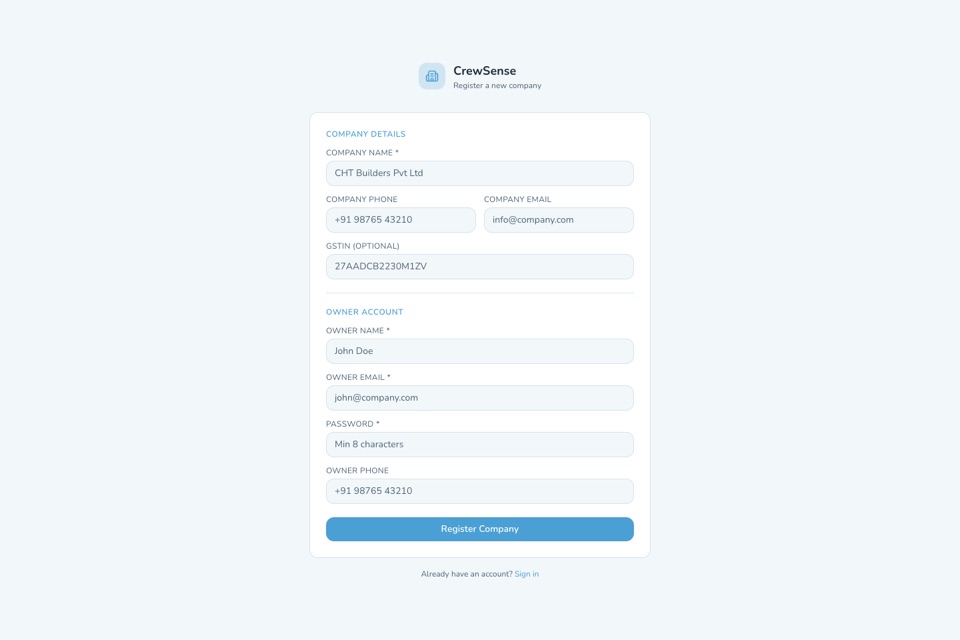
Registering a new construction company — admin console version of the Construction Company path
Project Estimates
All plansBuild a costed, line-by-line estimate before a project exists, or straight from within one. Estimates are always fully editable — add, price and remove line items any time, with net/GST/gross totals kept in sync automatically as you go. Attach a standalone estimate to a real project once the job is won, and its numbers become the numbers you build against — a project-attached estimate can also seed a BOQ directly. Export any estimate as a branded, watermarked PDF to send to a client. How many estimates you can keep depends on your plan.
Full write-up →A line-item estimate — always editable, with one-tap PDF export
Projects & Sub-Projects
All plansEvery project tracks location, budget, dates, documents, finances and progress in one place, and can carry up to 10 photos of the site or building — add them while creating the project or later; the first becomes the picture on the project's card in place of the default icon (your client sees it too), and every photo is encrypted at rest like any other upload. A large job can be split into sub-projects — full projects in their own right, each with its own budget, project engineer, site engineer, tasks, BOQ, DPR and materials — without consuming extra project slots on your plan. A sub-project inherits only its parent's client, branch and district; everything else about it runs independently. The parent shows a budget-allocation card — Total, Allocated (the sum of its sub-projects' own budgets) and Unallocated — so splitting a budget across sub-projects stays visible at a glance, and sub-projects can be dragged to reorder.
Full write-up →Budget allocation across sub-projects, each with its own budget and progress
Live Site View
All plansEvery project card shows a small animated drawing of its building site, built floor by floor from the work your team has logged — no separate setup. Each floor named in your tasks becomes a storey, and each sub-task shows on it: columns rise with framing, the slab is poured, bricks fill in with masonry, pipes, wiring and tiles appear, paint creeps up the walls, and a floor gets a tick when it passes inspection. A crane carries what the busiest floor needs, workers do their trade where work is in progress, and a site board at the gate shows the % complete and spend against the estimate — red with the amount over when it goes over budget. A paused project freezes and greys out behind a barrier; a finished one stands at dusk with its lights on. Open the project for a larger view with every floor labelled and a line on what is happening where.
Full write-up →Bill of Quantities (BOQ)
Professional+A contract's priced item list, tracked per project through a Draft → Active → Closed lifecycle. Items can be seeded from an estimate, and mix original contracted scope with post-award extra items. Setting up the first BOQ is now part of creating the project itself — import an estimate's line items or type them in manually — and stays fully editable from the BOQ tab afterwards exactly as before. Once a BOQ is active, updating a task can also record how much of a BOQ item that task built and what material it used, kept as its own number alongside contractor-measured quantities rather than merged into them. On Enterprise, a BOQ's status can additionally be updated straight from a task update, and every DPR carries a read-only BOQ status snapshot. Measuring and certifying work against BOQ items is covered separately under Subcontractor Commercials. Not yet built: RA billing — running bills against certified quantities.
Full write-up →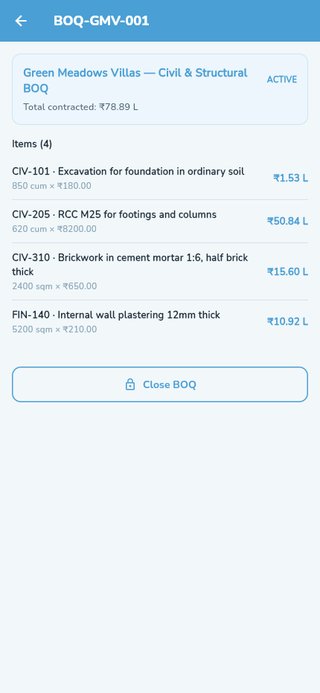
An active BOQ with contracted items, quantities and rates
Subcontractor Commercials
Professional+For subcontractors paid per unit of what they build rather than per day. Award a share of a BOQ item to a subcontractor under a priced contract, record what gets built, and certify what actually passes — keeping awarded, executed and certified as three separate numbers instead of one vague balance. A package can be 46% executed and 31% certified at the same time, and the gap between them is money someone is expecting that you have not agreed to yet.
The contract carries its value, retention, advance and payment terms. Awarding more of a BOQ item than the BOQ actually contains — across every subcontractor, not just one — is refused rather than quietly accepted, and a measurement that over-claims is flagged while it is being typed. Certifying less than was claimed requires a reason, and prices the difference as you enter it. Not yet built: RA bills, retention release and payments against a subcontract.
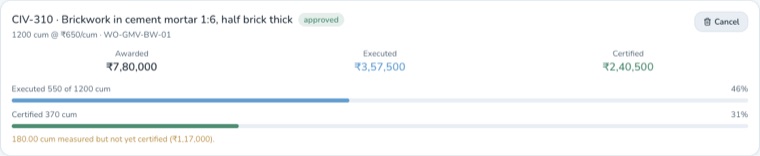
Awarded, executed and certified tracked separately for one BOQ item
Contractors (Thekedar) Tracking
Growth+Add a labour contractor, assign them to a project, and set per-skill agreed rates (defaulted from the district contract-labour wage table). Once assigned with rates, their supplied workforce is attendance-ready and their dues flow into payroll automatically.
Each contractor is marked with how they are paid: daily wages (headcount × day rate, through payroll — the default, and what most thekedars are), work package (paid per unit of measured output — see Subcontractor Commercials), or both, for a contractor who does some of each. The two never mix: work priced per day cannot be put on a measured contract, so the same work can never be paid for twice.
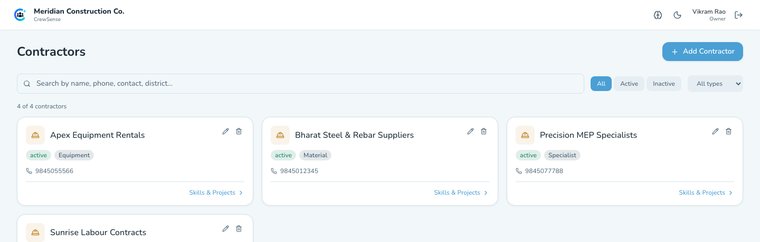
Contractor directory with type, status and contact details
Salary & Payroll
Growth+Staff, Contractor and Casual payroll in one place, filterable by month/week/custom range, with per-worker gross/advances/net-payable drill-downs priced using the wage rate effective on each attendance date. Site engineers only ever see payroll for attendance they personally recorded.
Thumbprint receipts (Professional and above): turn them on and each labourer confirms they received a wage payment or an advance by scanning their thumb (or face) as the money is handed over. The scan is kept with the payment, and the Payments list shows "Receipt confirmed by thumbprint". Workers who haven't been enrolled are still paid — the payment just shows it was recorded without a scan.
Staff Pay screen for admins, senior and site engineers
District Wage Rates
All plansSet per-district, per-skill daily wages for both directly-employed and contract labour — these auto-fill rates across Salary and new contractor setup.
Full write-up →Staff Leave & Approvals
EnterpriseAdmins, project engineers and site engineers can raise a leave request and track its approval; owners/admins review and approve or reject with a note. Separate from daily labour attendance — this is for the company's own salaried staff.
Full write-up →A pending request, routed to its resolved approver, ready to approve or reject
Material Catalogue
Growth+Your organisation's own list of materials with a fixed unit per item, so "Cement", "cement" and "OPC 53" stop arriving as three different things nobody can total. Seeded with ~43 standard items on day one; edit, retire and restore your own copy — it never touches another org's list. On Starter, requests still work with free-text name and unit.
Full write-up →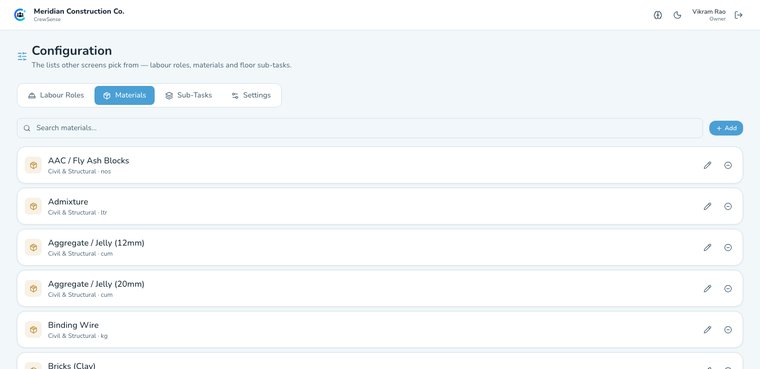
Organisation's material catalogue with unit per item
Material Requests Approval
All plansA queue of pending material requests for an admin to approve or reject, with an optional note either way.
Full write-up →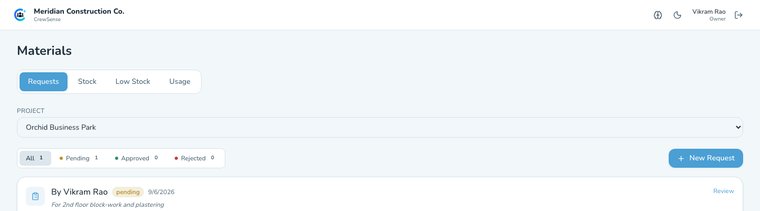
A material request awaiting admin approval
Purchase Sessions
All plansThe buying step between an approved material request and its stock/expense records — record the vendor, line items and any freight/misc charges. Depending on how far the purchase drifts from the approved request, a session auto-approves or is routed to review.
Full write-up →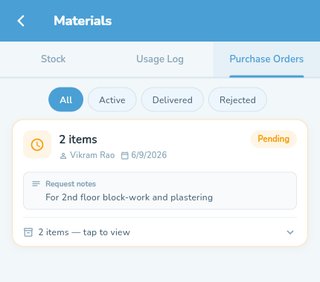
Purchase orders raised against an approved material request
Materials & Stock
All plansPer-project stock levels with low-stock badges, a usage log of what's been consumed, and material requests that route to an admin for approval.
Full write-up →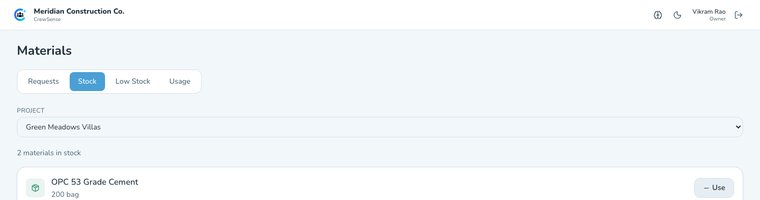
Current material stock levels for a project
Online Store & Procurement
All plansBrowse vendors with per-material rates, build a cart against a project, and send it for approval. Approved procurement orders are tracked through to delivery.
Full write-up →Material Vendor Marketplace
Coming soonA platform-wide, district-filtered directory of verified material vendors — raise a deal, negotiate a single counter-offer, and track the order through to delivery per line item, separate from your own organisation's material catalogue. The underlying deal/negotiation workflow exists, but the marketplace entry point in the app is currently shown as "Coming Soon" while the vendor network is built out.
Full write-up →The Manage hub — Marketplace is marked Coming Soon
Equipment Management
EnterpriseA company-wide register of machinery — excavators, mixers, generators — with org-type-aware categories, ownership and depreciation tracking (book value computed on demand), and site allocation with full transfer history. A database-level guarantee means one machine can never be allocated to two sites at once. Currently a snapshot of what's on site, not per-day operating hours — daily usage logging is a future addition.
Full write-up →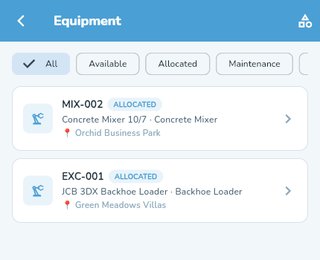
Equipment register showing allocation status per machine
Petty Cash / Site Expenses
Growth+Log site expenses by category (petty cash, transport, tools, fuel, food, other) with up to 3 receipt photos. A payment recorded as Other asks what it was for — "Crane rental", "Electricity bill" — and that name is what shows in the project's list of spends, instead of a row that just says "Other". Org-wide expense controls can auto-approve small amounts and require a photo above a set limit.
Full write-up →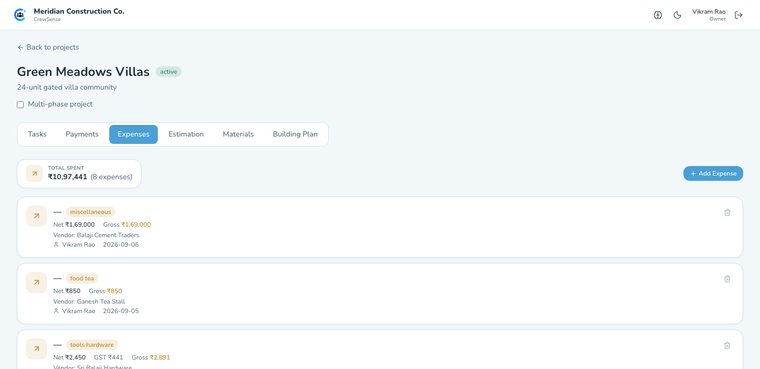
Project expenses by category with vendor and payment details
GST Invoices
Coming soonPlanned: client invoices with GSTIN details, the correct rate (5/12/18/28%), and automatic CGST+SGST vs IGST calculation depending on whether the sale is inter-state. Today, GSTIN format is validated at signup, and a vendor's own invoice can be attached to a purchase session as a file — but generating a GST invoice from within CrewSense isn't built yet.
Full write-up →Approvals & Spend Control
All plansA single summary of everything awaiting sign-off — material requests and procurement orders — with badge counts so nothing sits unnoticed.
Full write-up →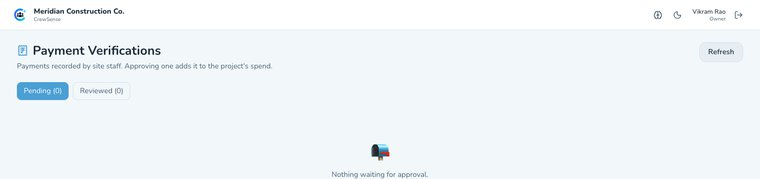
Payment verifications queue for site-recorded payments
CrewSense Advisor
Growth+A conversational AI over your organisation's own live data — not a single model call, but specialist agents (Project, Labour, Procurement, Finance, Commercial, Document, Planning, Knowledge, Reporting, Admin, Memory, and Help — which answers "where is that button?" from this guide) routed to by a question and merged into one answer. It can chart comparable figures inline, and a handful of tools can propose a change (update a task, raise a request) that only takes effect after you tap Confirm. Chat is Admin/Owner only. Each question spends one Advisor credit: Growth gets 15 a month, Professional 15 a day and Enterprise 25 a day, counted per organisation.
Full write-up →CrewSense Advisor chat with suggested starter questions
Today's Agenda
Growth+A proactive digest shown under the greeting on Home — "what needs your attention today" — generated once per day (plus up to 2 manual refreshes) by the same agent pipeline as the Advisor. Project Engineers and Site Engineers get it too, scoped strictly to their own assigned projects.
Full write-up →AI Risk Alerts & Decision Memory
Professional+A daily 11:00 AM job scans every active project for four kinds of genuine risk — task delay, material shortage, project delay, cost overrun — and raises a notification, deduplicated with a 4-day cooldown. Decision Memory lets the Advisor recall and search past logged decisions and project history.
Full write-up →Needs Attention — a behind-schedule alert surfaced automatically
Reports & Export
All plansExport payments, salary, materials (stock or usage log) and attendance as PDF or Excel, and share straight to WhatsApp. Every export carries a consistent branded header — your logo, GSTIN, project and site-team contacts — and documents that leave the company are watermarked. Project Estimates and Project Showcase each carry their own dedicated watermarked PDF export, built the same way.
Full write-up →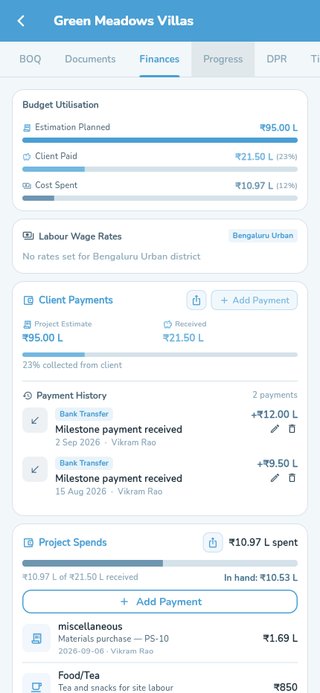
Project finances — client payments and spend in one view
My Company — Adding Team Members
All plansFour tabs: Details (org profile, logo, force-logout-all-members), Members — add a new Admin, Project Engineer, Site Engineer or Labour with a name, phone and email; Admins, Project Engineers and Site Engineers are also assigned one or more districts, and salaried roles can optionally carry Aadhaar/PAN for the record. The same list is also where you reset a member's password, force them out of an active session, or grant one of the additive BOQ Roles. Skill Wages sets the direct + contract wage tables, and Configuration covers catalogues, expense controls, the Advisor toggle and task verification.
Full write-up →The My Company screen — Details, Members, Skill Wages and Configuration tabs
Permission Grants (BOQ Roles)
Professional+Five additive grants — Project Manager, Quantity Surveyor, Billing Engineer, Accounts, Equipment Manager — layered on top of a member's existing role rather than replacing it. Lets a Site Engineer edit a BOQ or allocate equipment without becoming an Admin.
Full write-up →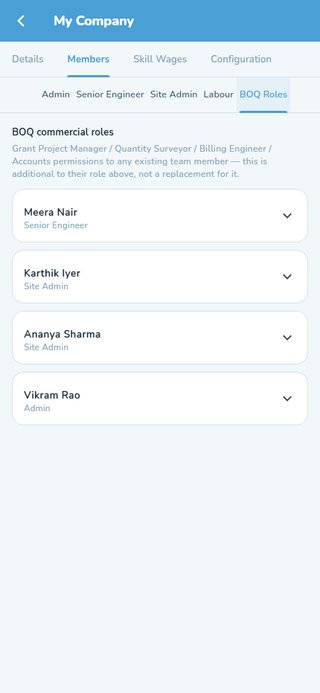
BOQ commercial role grants layered on top of each member's role
Organisation Type & Catalogues (Sub-Tasks, Labour Roles, Materials)
All plansThree lists your organisation works from: the stage sub-tasks offered when adding a floor, the labour-role/skill list used everywhere from attendance to wages, and the material catalogue. They start from your organisation type — Construction, Modification, or another kind of work CrewSense supports — each with its own standard lists.
- Choose it once. In Configuration, pick your type and confirm: its sub-tasks, labour roles and materials are copied into your lists. It is a one-time setting; to change it later, contact CrewSense support.
- Your copy is yours. Rename, retire or add items freely — your changes never alter the standard list, and changes to the standard list never overwrite yours. Add your own custom items alongside.
- What you had before stays if you used it. Items from your starting list that you edited or already used (on a worker, a wage, a floor or a purchase) are kept; unused ones are retired — hidden from pickers but still shown on old records.
- New items are offered, never pushed. When CrewSense adds to your type's standard list, Configuration and each list show "new for your organisation type" — tick what you want and add it.
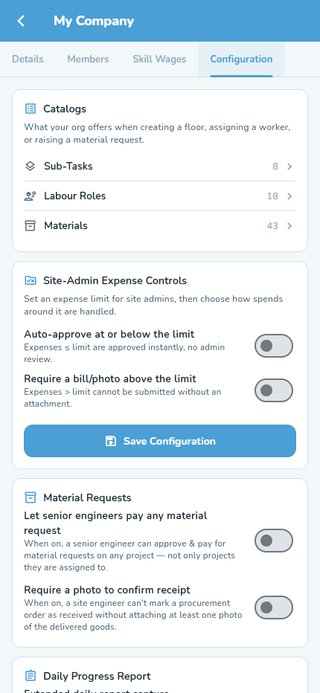
Org-wide catalogues: sub-tasks, labour roles and materials
Subscription & Plan Gating
All plansEvery organisation starts on a 28-day free trial of the plan chosen at signup, with that plan's features and limits. Upgrade via Razorpay checkout (one-time or auto-pay). Moving to a smaller plan needs your usage within its limits first — the app lists exactly which team members or projects are over. Once a trial or subscription lapses, admins are guided to renew and non-admins see a plain "ask your admin" message rather than a broken app. Invoices & receipts lists every payment you have made to CrewSense — pick a month, a quarter (financial-year quarters, so Q1 is April–June), a year or a financial year, and download one PDF for the whole period or any single invoice. It stays open even after a plan lapses.
Full write-up →Current plan and validity shown in the Manage hub
Push Notifications
Growth+Event-driven pushes (approvals, salary, project assignment) arrive automatically; an admin can also broadcast a manual notification to the team. Correctly scoped per account even on a shared device — logging out unregisters that device from your account.
Full write-up →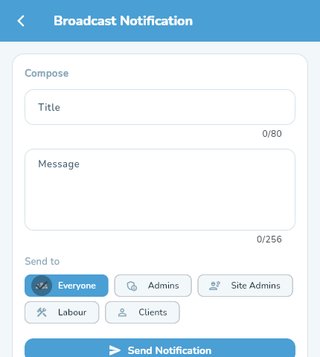
Composing a broadcast notification to the team
Calendar & Events
All plansManually added events plus automatic task-deadline reminders, colour-coded by urgency, shown on every dashboard.
Full write-up →Activity Feed
All plansA timestamped log of completed tasks across every project, credited to whoever actually marked it done, filterable by project.
Full write-up →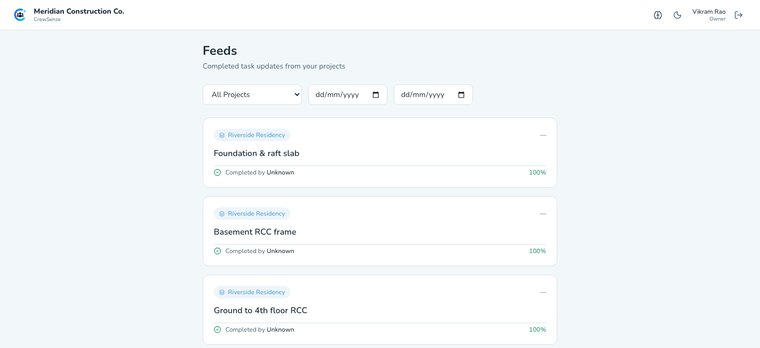
Completed task updates across every project
Document Management
All plansUpload building plans, floor plans, structural/electrical/plumbing drawings, elevations, approvals, contracts and more against a project, organised by category. Every document is encrypted at rest (see Data Security).
Full write-up →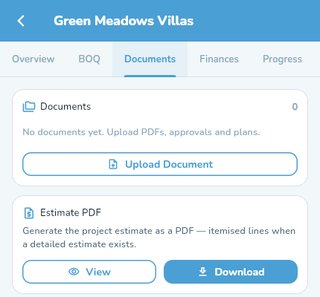
Project documents screen with categorised uploads
Project Showcase
All plansCurate a marketing-ready gallery of your completed projects — reorderable photos, a cover image, and a public read-only view a client can browse without logging in. Cost, staff names and phone numbers are never sent to that public view. Exports as a watermarked PDF brochure.
Full write-up →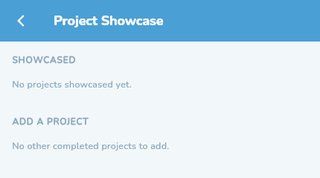
Project Showcase — curate a gallery once a project is completed
Face Check, Check-In & Check-Out
All plansConfirm a labourer is really the person being marked present with a quick face scan on the phone. Enrol a worker once (with their consent), then tap Verify on their card — a match marks them Present with a green check, and the saved record shows it was face-checked. For the morning and evening queues, Scan to mark — roll call scans first and names the worker: the first scan of the day checks them in and records their in time, the next checks them out. The hours between them suggest the day — 8 hours a full day, 6 a three-quarter day, 4 a half day, less a quarter day — and the site engineer can change it before saving; pay follows the day that is saved. Attendance cards then read "In 9:05 AM · Out 6:10 PM · 9h 05m". Times come from the server, not the phone's clock. A blink-and-turn check stops a printed photo from passing. Offline sites can still mark by hand; if the company requires a check, hand-marked records are flagged for review rather than refused.
Full write-up →Two-Step Sign-In
All plansAfter your password (or Google, or fingerprint quick-login), CrewSense emails a 6-digit code to your account's address and asks for it before signing you in. Owners and Admins always use it; anyone else can turn it on for themselves. On the phone app it is asked once per phone — tick "Don't ask again on this device" — while a browser asks every time. Codes last 10 minutes, a new one can be sent after 30 seconds, and five wrong tries start the sign-in again. The email has a Copy code button. Changing your password makes your other devices ask again.
Full write-up →- Their assigned projects and sub-projects, with their own material stock
- Approves material requests and petty cash for those sites
- Can pay a vendor directly — the admin verifies it afterwards
- Task progress, daily reports and the site feed
- Approves leave for the site engineers on their sites
No payroll, no company finance, and no access to a project they are not on.
23 features & screens for this role
Projects & Sub-Projects
All plansEvery project tracks location, budget, dates, documents, finances and progress in one place, and can carry up to 10 photos of the site or building — add them while creating the project or later; the first becomes the picture on the project's card in place of the default icon (your client sees it too), and every photo is encrypted at rest like any other upload. A large job can be split into sub-projects — full projects in their own right, each with its own budget, project engineer, site engineer, tasks, BOQ, DPR and materials — without consuming extra project slots on your plan. A sub-project inherits only its parent's client, branch and district; everything else about it runs independently. The parent shows a budget-allocation card — Total, Allocated (the sum of its sub-projects' own budgets) and Unallocated — so splitting a budget across sub-projects stays visible at a glance, and sub-projects can be dragged to reorder.
Full write-up →Budget allocation across sub-projects, each with its own budget and progress
Live Site View
All plansEvery project card shows a small animated drawing of its building site, built floor by floor from the work your team has logged — no separate setup. Each floor named in your tasks becomes a storey, and each sub-task shows on it: columns rise with framing, the slab is poured, bricks fill in with masonry, pipes, wiring and tiles appear, paint creeps up the walls, and a floor gets a tick when it passes inspection. A crane carries what the busiest floor needs, workers do their trade where work is in progress, and a site board at the gate shows the % complete and spend against the estimate — red with the amount over when it goes over budget. A paused project freezes and greys out behind a barrier; a finished one stands at dusk with its lights on. Open the project for a larger view with every floor labelled and a line on what is happening where.
Full write-up →Bill of Quantities (BOQ)
Professional+A contract's priced item list, tracked per project through a Draft → Active → Closed lifecycle. Items can be seeded from an estimate, and mix original contracted scope with post-award extra items. Setting up the first BOQ is now part of creating the project itself — import an estimate's line items or type them in manually — and stays fully editable from the BOQ tab afterwards exactly as before. Once a BOQ is active, updating a task can also record how much of a BOQ item that task built and what material it used, kept as its own number alongside contractor-measured quantities rather than merged into them. On Enterprise, a BOQ's status can additionally be updated straight from a task update, and every DPR carries a read-only BOQ status snapshot. Measuring and certifying work against BOQ items is covered separately under Subcontractor Commercials. Not yet built: RA billing — running bills against certified quantities.
Full write-up →An active BOQ with contracted items, quantities and rates
Subcontractor Commercials
Professional+For subcontractors paid per unit of what they build rather than per day. Award a share of a BOQ item to a subcontractor under a priced contract, record what gets built, and certify what actually passes — keeping awarded, executed and certified as three separate numbers instead of one vague balance. A package can be 46% executed and 31% certified at the same time, and the gap between them is money someone is expecting that you have not agreed to yet.
The contract carries its value, retention, advance and payment terms. Awarding more of a BOQ item than the BOQ actually contains — across every subcontractor, not just one — is refused rather than quietly accepted, and a measurement that over-claims is flagged while it is being typed. Certifying less than was claimed requires a reason, and prices the difference as you enter it. Not yet built: RA bills, retention release and payments against a subcontract.
Awarded, executed and certified tracked separately for one BOQ item
Task-Based Progress Tracking
All plansTasks are grouped by floor into a connected "Site Timeline" — On Track / Due Soon / Overdue counts, then one waypoint per floor. Completing a task requires a proof photo, and overall project progress is the average of every task's completion. By default, a Site Engineer marking a task complete sends it to Pending Verification instead of straight to Completed — an Admin or Project Engineer has to approve it, or send it back for rework with a reason, before it counts. An org can turn this off in Configuration if every completion should be final immediately. Either way, a project itself can only be marked completed once every one of its tasks is.
Full write-up →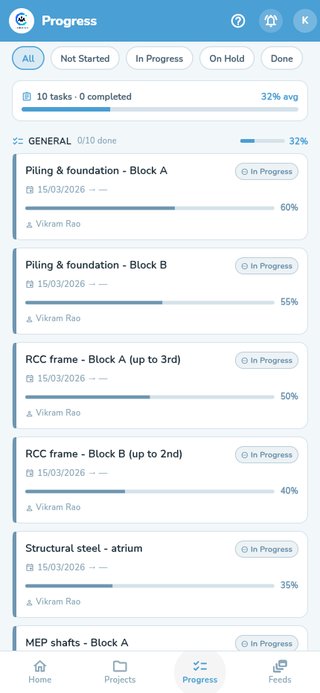
Cross-project task progress with on-track/in-progress status
Daily Progress Reports (DPR)
All plansOne report per project per day, auto-assembled from the day's tasks, attendance (staff + contractor, merged), material usage and site photos — there's no data-entry form. You only supply weather, and optionally issues and a site note. Goes through an approval workflow and generates a branded, shareable PDF. On Enterprise, a BOQ status section and an Equipment-on-site section are included automatically when relevant.
Full write-up →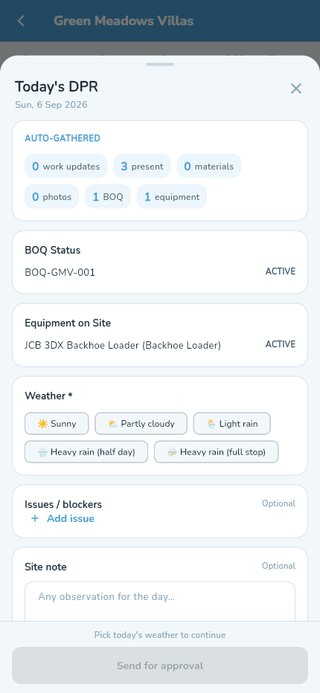
Generating today's DPR — auto-gathered attendance, BOQ and equipment
Document Management
All plansUpload building plans, floor plans, structural/electrical/plumbing drawings, elevations, approvals, contracts and more against a project, organised by category. Every document is encrypted at rest (see Data Security).
Full write-up →Project documents screen with categorised uploads
Site Location & Route Planning
All plansPin a site's location (stand there and use your device's position, or paste a Google Maps link) and get a one-way, nearest-first route across every site you're assigned to that day. Sites with no pin are listed separately so you know what still needs one.
Full write-up →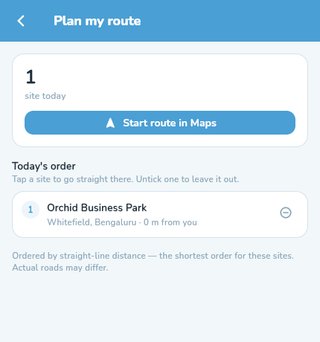
Today's route ordered nearest-first across assigned sites
Building Plan (Floor Layout)
All plansA per-floor layout canvas under each project, separate from the task-progress list — add a floor here to start drawing/positioning its layout. Marketed on pricing as "Plan Visualizer."
Full write-up →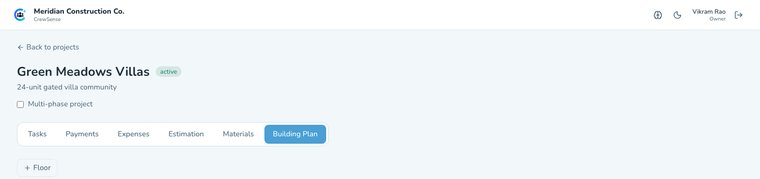
Building Plan tab — add a floor to start drawing its layout
Attendance
All plansMark directly-employed workers Present/Absent/Half-day, log anonymous casual headcount by skill, and record the headcount a contractor supplied — each feeding straight into the matching Salary report. History is browsable by day, and exports to Excel/PDF or WhatsApp. No signal on site? Save anyway — new marks wait on the phone, a banner shows how many, and they send themselves once you are back online.
Full write-up →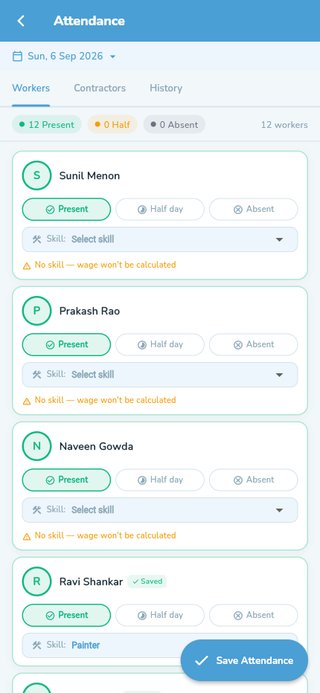
Marking daily attendance for site workers by skill
Face Check, Check-In & Check-Out
All plansConfirm a labourer is really the person being marked present with a quick face scan on the phone. Enrol a worker once (with their consent), then tap Verify on their card — a match marks them Present with a green check, and the saved record shows it was face-checked. For the morning and evening queues, Scan to mark — roll call scans first and names the worker: the first scan of the day checks them in and records their in time, the next checks them out. The hours between them suggest the day — 8 hours a full day, 6 a three-quarter day, 4 a half day, less a quarter day — and the site engineer can change it before saving; pay follows the day that is saved. Attendance cards then read "In 9:05 AM · Out 6:10 PM · 9h 05m". Times come from the server, not the phone's clock. A blink-and-turn check stops a printed photo from passing. Offline sites can still mark by hand; if the company requires a check, hand-marked records are flagged for review rather than refused.
Full write-up →Salary & Payroll
Growth+Staff, Contractor and Casual payroll in one place, filterable by month/week/custom range, with per-worker gross/advances/net-payable drill-downs priced using the wage rate effective on each attendance date. Site engineers only ever see payroll for attendance they personally recorded.
Thumbprint receipts (Professional and above): turn them on and each labourer confirms they received a wage payment or an advance by scanning their thumb (or face) as the money is handed over. The scan is kept with the payment, and the Payments list shows "Receipt confirmed by thumbprint". Workers who haven't been enrolled are still paid — the payment just shows it was recorded without a scan.
Staff Pay screen for admins, senior and site engineers
Staff Leave & Approvals
EnterpriseAdmins, project engineers and site engineers can raise a leave request and track its approval; owners/admins review and approve or reject with a note. Separate from daily labour attendance — this is for the company's own salaried staff.
Full write-up →A pending request, routed to its resolved approver, ready to approve or reject
Materials & Stock
All plansPer-project stock levels with low-stock badges, a usage log of what's been consumed, and material requests that route to an admin for approval.
Full write-up →Current material stock levels for a project
Purchase Sessions
All plansThe buying step between an approved material request and its stock/expense records — record the vendor, line items and any freight/misc charges. Depending on how far the purchase drifts from the approved request, a session auto-approves or is routed to review.
Full write-up →Purchase orders raised against an approved material request
Material Requests Approval
All plansA queue of pending material requests for an admin to approve or reject, with an optional note either way.
Full write-up →A material request awaiting admin approval
Online Store & Procurement
All plansBrowse vendors with per-material rates, build a cart against a project, and send it for approval. Approved procurement orders are tracked through to delivery.
Full write-up →Approvals & Spend Control
All plansA single summary of everything awaiting sign-off — material requests and procurement orders — with badge counts so nothing sits unnoticed.
Full write-up →Payment verifications queue for site-recorded payments
Today's Agenda
Growth+A proactive digest shown under the greeting on Home — "what needs your attention today" — generated once per day (plus up to 2 manual refreshes) by the same agent pipeline as the Advisor. Project Engineers and Site Engineers get it too, scoped strictly to their own assigned projects.
Full write-up →Reports & Export
All plansExport payments, salary, materials (stock or usage log) and attendance as PDF or Excel, and share straight to WhatsApp. Every export carries a consistent branded header — your logo, GSTIN, project and site-team contacts — and documents that leave the company are watermarked. Project Estimates and Project Showcase each carry their own dedicated watermarked PDF export, built the same way.
Full write-up →Project finances — client payments and spend in one view
Permission Grants (BOQ Roles)
Professional+Five additive grants — Project Manager, Quantity Surveyor, Billing Engineer, Accounts, Equipment Manager — layered on top of a member's existing role rather than replacing it. Lets a Site Engineer edit a BOQ or allocate equipment without becoming an Admin.
Full write-up →BOQ commercial role grants layered on top of each member's role
Calendar & Events
All plansManually added events plus automatic task-deadline reminders, colour-coded by urgency, shown on every dashboard.
Full write-up →Activity Feed
All plansA timestamped log of completed tasks across every project, credited to whoever actually marked it done, filterable by project.
Full write-up →Completed task updates across every project
- Marks a whole crew's attendance in under a minute
- Requests materials, records usage, raises purchase orders
- Logs petty cash with a photo of the bill
- Daily progress reports and task updates
- Applies for leave from the phone, and sees where it stands
Never sees staff salaries or company margin.
21 features & screens for this role
Attendance
All plansMark directly-employed workers Present/Absent/Half-day, log anonymous casual headcount by skill, and record the headcount a contractor supplied — each feeding straight into the matching Salary report. History is browsable by day, and exports to Excel/PDF or WhatsApp. No signal on site? Save anyway — new marks wait on the phone, a banner shows how many, and they send themselves once you are back online.
Full write-up →Marking daily attendance for site workers by skill
Face Check, Check-In & Check-Out
All plansConfirm a labourer is really the person being marked present with a quick face scan on the phone. Enrol a worker once (with their consent), then tap Verify on their card — a match marks them Present with a green check, and the saved record shows it was face-checked. For the morning and evening queues, Scan to mark — roll call scans first and names the worker: the first scan of the day checks them in and records their in time, the next checks them out. The hours between them suggest the day — 8 hours a full day, 6 a three-quarter day, 4 a half day, less a quarter day — and the site engineer can change it before saving; pay follows the day that is saved. Attendance cards then read "In 9:05 AM · Out 6:10 PM · 9h 05m". Times come from the server, not the phone's clock. A blink-and-turn check stops a printed photo from passing. Offline sites can still mark by hand; if the company requires a check, hand-marked records are flagged for review rather than refused.
Full write-up →Contractors (Thekedar) Tracking
Growth+Add a labour contractor, assign them to a project, and set per-skill agreed rates (defaulted from the district contract-labour wage table). Once assigned with rates, their supplied workforce is attendance-ready and their dues flow into payroll automatically.
Each contractor is marked with how they are paid: daily wages (headcount × day rate, through payroll — the default, and what most thekedars are), work package (paid per unit of measured output — see Subcontractor Commercials), or both, for a contractor who does some of each. The two never mix: work priced per day cannot be put on a measured contract, so the same work can never be paid for twice.
Contractor directory with type, status and contact details
Task-Based Progress Tracking
All plansTasks are grouped by floor into a connected "Site Timeline" — On Track / Due Soon / Overdue counts, then one waypoint per floor. Completing a task requires a proof photo, and overall project progress is the average of every task's completion. By default, a Site Engineer marking a task complete sends it to Pending Verification instead of straight to Completed — an Admin or Project Engineer has to approve it, or send it back for rework with a reason, before it counts. An org can turn this off in Configuration if every completion should be final immediately. Either way, a project itself can only be marked completed once every one of its tasks is.
Full write-up →Cross-project task progress with on-track/in-progress status
Live Site View
All plansEvery project card shows a small animated drawing of its building site, built floor by floor from the work your team has logged — no separate setup. Each floor named in your tasks becomes a storey, and each sub-task shows on it: columns rise with framing, the slab is poured, bricks fill in with masonry, pipes, wiring and tiles appear, paint creeps up the walls, and a floor gets a tick when it passes inspection. A crane carries what the busiest floor needs, workers do their trade where work is in progress, and a site board at the gate shows the % complete and spend against the estimate — red with the amount over when it goes over budget. A paused project freezes and greys out behind a barrier; a finished one stands at dusk with its lights on. Open the project for a larger view with every floor labelled and a line on what is happening where.
Full write-up →Daily Progress Reports (DPR)
All plansOne report per project per day, auto-assembled from the day's tasks, attendance (staff + contractor, merged), material usage and site photos — there's no data-entry form. You only supply weather, and optionally issues and a site note. Goes through an approval workflow and generates a branded, shareable PDF. On Enterprise, a BOQ status section and an Equipment-on-site section are included automatically when relevant.
Full write-up →Generating today's DPR — auto-gathered attendance, BOQ and equipment
Document Management
All plansUpload building plans, floor plans, structural/electrical/plumbing drawings, elevations, approvals, contracts and more against a project, organised by category. Every document is encrypted at rest (see Data Security).
Full write-up →Project documents screen with categorised uploads
Site Location & Route Planning
All plansPin a site's location (stand there and use your device's position, or paste a Google Maps link) and get a one-way, nearest-first route across every site you're assigned to that day. Sites with no pin are listed separately so you know what still needs one.
Full write-up →Today's route ordered nearest-first across assigned sites
Building Plan (Floor Layout)
All plansA per-floor layout canvas under each project, separate from the task-progress list — add a floor here to start drawing/positioning its layout. Marketed on pricing as "Plan Visualizer."
Full write-up →Building Plan tab — add a floor to start drawing its layout
Materials & Stock
All plansPer-project stock levels with low-stock badges, a usage log of what's been consumed, and material requests that route to an admin for approval.
Full write-up →Current material stock levels for a project
Purchase Sessions
All plansThe buying step between an approved material request and its stock/expense records — record the vendor, line items and any freight/misc charges. Depending on how far the purchase drifts from the approved request, a session auto-approves or is routed to review.
Full write-up →Purchase orders raised against an approved material request
Material Requests Approval
All plansA queue of pending material requests for an admin to approve or reject, with an optional note either way.
Full write-up →A material request awaiting admin approval
Online Store & Procurement
All plansBrowse vendors with per-material rates, build a cart against a project, and send it for approval. Approved procurement orders are tracked through to delivery.
Full write-up →Petty Cash / Site Expenses
Growth+Log site expenses by category (petty cash, transport, tools, fuel, food, other) with up to 3 receipt photos. A payment recorded as Other asks what it was for — "Crane rental", "Electricity bill" — and that name is what shows in the project's list of spends, instead of a row that just says "Other". Org-wide expense controls can auto-approve small amounts and require a photo above a set limit.
Full write-up →Project expenses by category with vendor and payment details
Salary & Payroll
Growth+Staff, Contractor and Casual payroll in one place, filterable by month/week/custom range, with per-worker gross/advances/net-payable drill-downs priced using the wage rate effective on each attendance date. Site engineers only ever see payroll for attendance they personally recorded.
Thumbprint receipts (Professional and above): turn them on and each labourer confirms they received a wage payment or an advance by scanning their thumb (or face) as the money is handed over. The scan is kept with the payment, and the Payments list shows "Receipt confirmed by thumbprint". Workers who haven't been enrolled are still paid — the payment just shows it was recorded without a scan.
Staff Pay screen for admins, senior and site engineers
Staff Leave & Approvals
EnterpriseAdmins, project engineers and site engineers can raise a leave request and track its approval; owners/admins review and approve or reject with a note. Separate from daily labour attendance — this is for the company's own salaried staff.
Full write-up →A pending request, routed to its resolved approver, ready to approve or reject
Today's Agenda
Growth+A proactive digest shown under the greeting on Home — "what needs your attention today" — generated once per day (plus up to 2 manual refreshes) by the same agent pipeline as the Advisor. Project Engineers and Site Engineers get it too, scoped strictly to their own assigned projects.
Full write-up →Reports & Export
All plansExport payments, salary, materials (stock or usage log) and attendance as PDF or Excel, and share straight to WhatsApp. Every export carries a consistent branded header — your logo, GSTIN, project and site-team contacts — and documents that leave the company are watermarked. Project Estimates and Project Showcase each carry their own dedicated watermarked PDF export, built the same way.
Full write-up →Project finances — client payments and spend in one view
Permission Grants (BOQ Roles)
Professional+Five additive grants — Project Manager, Quantity Surveyor, Billing Engineer, Accounts, Equipment Manager — layered on top of a member's existing role rather than replacing it. Lets a Site Engineer edit a BOQ or allocate equipment without becoming an Admin.
Full write-up →BOQ commercial role grants layered on top of each member's role
Calendar & Events
All plansManually added events plus automatic task-deadline reminders, colour-coded by urgency, shown on every dashboard.
Full write-up →Activity Feed
All plansA timestamped log of completed tasks across every project, credited to whoever actually marked it done, filterable by project.
Full write-up →Completed task updates across every project
- Their attendance history, day by day
- Wages earned, advances taken, net payable
- Ends the "how many days did I work?" argument on payday
Cannot see anyone else's pay.
2 features & screens for this role
Attendance
All plansMark directly-employed workers Present/Absent/Half-day, log anonymous casual headcount by skill, and record the headcount a contractor supplied — each feeding straight into the matching Salary report. History is browsable by day, and exports to Excel/PDF or WhatsApp. No signal on site? Save anyway — new marks wait on the phone, a banner shows how many, and they send themselves once you are back online.
Full write-up →Marking daily attendance for site workers by skill
Salary & Payroll
Growth+Staff, Contractor and Casual payroll in one place, filterable by month/week/custom range, with per-worker gross/advances/net-payable drill-downs priced using the wage rate effective on each attendance date. Site engineers only ever see payroll for attendance they personally recorded.
Thumbprint receipts (Professional and above): turn them on and each labourer confirms they received a wage payment or an advance by scanning their thumb (or face) as the money is handed over. The scan is kept with the payment, and the Payments list shows "Receipt confirmed by thumbprint". Workers who haven't been enrolled are still paid — the payment just shows it was recorded without a scan.
Staff Pay screen for admins, senior and site engineers
- Live progress on their own project, with site photos
- Payments made and what is still due
- Drawings and documents you choose to share
Sees only their own project — never your costs or margin.
8 features & screens for this role
Client Dashboard
Growth+A client sees only the projects they're linked to as client on: status, budget, timeline, documents, payments, approved DPRs, and a "who to contact" card with a one-tap call button for the assigned site team. Once a project is completed, they can leave a star rating and review.
Full write-up →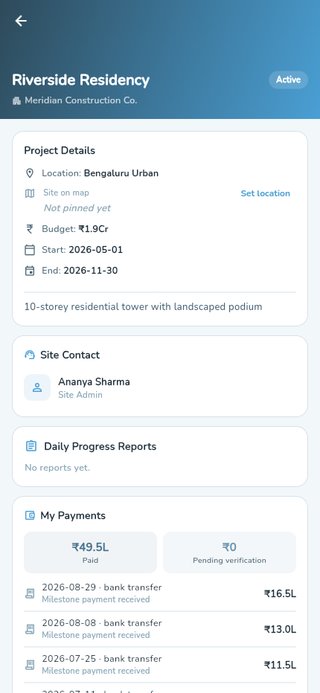
A client's view of their project — site contact, DPRs and payments
Cost Estimator
All plansA 4-step wizard (location, building size, quality tier, extras) that produces a low/high cost range with a 6-category breakdown — self-service, for anyone evaluating a build.
Full write-up →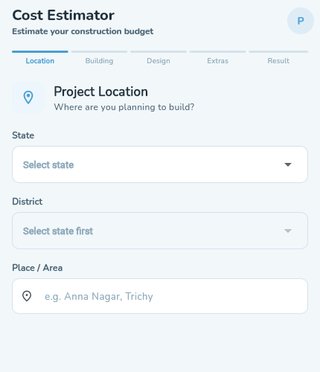
The 4-step cost estimator wizard for a prospective build
Company Directory
Coming soonPlanned as a public, no-login directory of construction companies with ratings, years active and project counts — for prospective clients browsing, and for sharing a company's public profile link. The Companies tab exists on a client account today, but currently shows a "Coming Soon" placeholder while the directory is rebuilt.
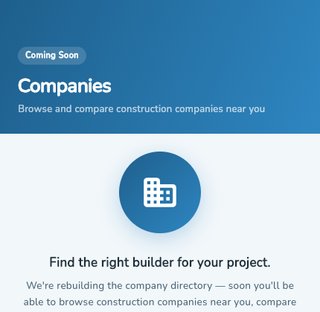
Company directory — currently marked Coming Soon
Client Plans
All plansEvery client account is on Basic (free) or Advanced. Advanced unlocks reading full reviews, writing your own, and a company's work portfolio and project history. This is entirely separate from the construction company's own organisation plan.
Full write-up →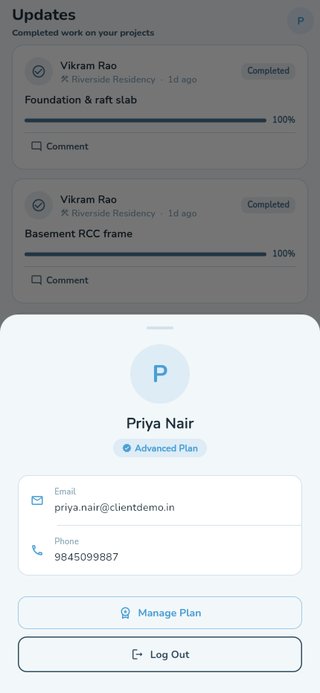
Client profile showing the Advanced plan badge
Project Showcase
All plansCurate a marketing-ready gallery of your completed projects — reorderable photos, a cover image, and a public read-only view a client can browse without logging in. Cost, staff names and phone numbers are never sent to that public view. Exports as a watermarked PDF brochure.
Full write-up →Project Showcase — curate a gallery once a project is completed
Document Management
All plansUpload building plans, floor plans, structural/electrical/plumbing drawings, elevations, approvals, contracts and more against a project, organised by category. Every document is encrypted at rest (see Data Security).
Full write-up →Project documents screen with categorised uploads
Daily Progress Reports (DPR)
All plansOne report per project per day, auto-assembled from the day's tasks, attendance (staff + contractor, merged), material usage and site photos — there's no data-entry form. You only supply weather, and optionally issues and a site note. Goes through an approval workflow and generates a branded, shareable PDF. On Enterprise, a BOQ status section and an Equipment-on-site section are included automatically when relevant.
Full write-up →Generating today's DPR — auto-gathered attendance, BOQ and equipment
Task-Based Progress Tracking
All plansTasks are grouped by floor into a connected "Site Timeline" — On Track / Due Soon / Overdue counts, then one waypoint per floor. Completing a task requires a proof photo, and overall project progress is the average of every task's completion. By default, a Site Engineer marking a task complete sends it to Pending Verification instead of straight to Completed — an Admin or Project Engineer has to approve it, or send it back for rework with a reason, before it counts. An org can turn this off in Configuration if every completion should be final immediately. Either way, a project itself can only be marked completed once every one of its tasks is.
Full write-up →Cross-project task progress with on-track/in-progress status
- Material Vendor — a storefront in the marketplace, receives and responds to purchase orders, manages a catalogue and pricing
- Manpower Contractor — self-registration exists behind the scenes but is not reachable from sign-up yet
Vendors sign up separately — no seat on your organisation's plan.
3 features & screens for this role
Material Vendor Marketplace
Coming soonA platform-wide, district-filtered directory of verified material vendors — raise a deal, negotiate a single counter-offer, and track the order through to delivery per line item, separate from your own organisation's material catalogue. The underlying deal/negotiation workflow exists, but the marketplace entry point in the app is currently shown as "Coming Soon" while the vendor network is built out.
Full write-up →The Manage hub — Marketplace is marked Coming Soon
GST Invoices
Coming soonPlanned: client invoices with GSTIN details, the correct rate (5/12/18/28%), and automatic CGST+SGST vs IGST calculation depending on whether the sale is inter-state. Today, GSTIN format is validated at signup, and a vendor's own invoice can be attached to a purchase session as a file — but generating a GST invoice from within CrewSense isn't built yet.
Full write-up →Signing Up
All plansTwo live registration paths: Construction Company (creates an organisation + Admin account, with a 28-day free trial on the plan you choose — Starter, Growth or Professional; Enterprise is set up with our team) and Client / House Owner (a standalone account with no organisation, used to track a build from the buyer's side). Both support signing up with Google. The company sign-up also asks what kind of work you do — that sets your starting organisation type, which you confirm later in your company settings. Manpower Contractor and Material Vendor self-registration exist behind the scenes but are marked Coming soon and not reachable from the sign-up screen yet.
Full write-up →Registering a new construction company — admin console version of the Construction Company path
Something not covered here?
This page tracks what's actually shipped, grouped by who uses it. If a feature you need isn't listed, it's either not built yet or we've missed documenting it — message us on WhatsApp and we'll point you in the right direction.
See it running on your own site
28-day free trial, no credit card required.
28-day free trial on all plans. Cancel anytime.