Documentation
Every feature, a real use case, and where to find it
This page covers the current state of CrewSense — every module that's live today, what it's actually for, which plan unlocks it, and the exact menu path to reach it in the app (app.crewsense.in) or the admin console (admin.crewsense.in). Badges: ALL PLANS GROWTH+ PROFESSIONAL+ ENTERPRISE COMING SOON. See Pricing for exact plan limits, or Features for the marketing tour.
Roles & Accounts
All plansSix roles, each with its own navigation and permissions: Admin, Senior Engineer, Manager (Contractor), Site Admin (Site Engineer), Labour, and Client. On top of these, five additive permission grants (Project Manager, Quantity Surveyor, Billing Engineer, Accounts, Equipment Manager) unlock specific commercial actions without changing anyone's base role.
Use case: A Site Admin also does the billing for one project. Instead of promoting them to Admin (which would expose payroll and every other project), you grant them "Quantity Surveyor" — now they can edit that project's BOQ and nothing else changes.
Find it: A member's role is set when they're added; grants are managed from Management → My Company → Members → BOQ Roles.
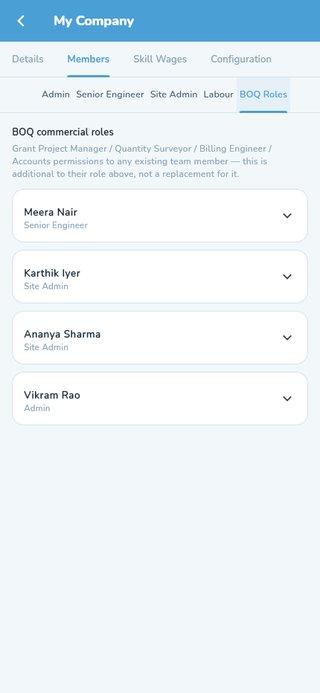
BOQ Roles grant screen showing additive permissions per member
Signing Up
All plansTwo live registration paths: Construction Company (creates an organisation + Admin account, 28-day free trial) and Client / House Owner (a standalone account with no organisation, used to track a build from the buyer's side). Both support signing up with Google. Manpower Contractor and Material Vendor self-registration exist behind the scenes but are marked Coming soon and not reachable from the sign-up screen yet.
Use case: A contracting firm's owner signs up as a Construction Company on a Friday evening, has their Admin account active immediately, and starts adding projects and staff the same night — no sales call, no waiting for setup.
Find it: The Sign Up button on the login screen.
Logging In
All plansEmail + password, biometric login (fingerprint/face) after the first successful sign-in, and Continue with Google. Forgot your password? A self-service reset is available on both the app and the admin console — for a paid non-admin account it emails a temporary password; an Owner/Admin is directed to email admin@crewsense.in. On the web, a session ends after 30 minutes idle; the mobile app stays signed in until you log out.
Use case: A site engineer forgets their password on a Monday morning. They tap "Forgot password?", get a temporary password emailed instantly, and are back marking attendance within a minute — no phone call to the office needed.
Find it: Forgot password? link under the password field on either login screen.
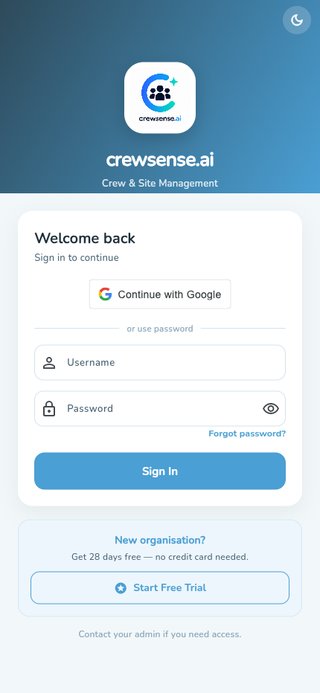
Login screen with Google sign-in and password fields
First-Run Tour
All plansA short swipeable carousel shown once per account on first login, tailored to the surface — the app's covers Projects, Attendance, Wages, Finance, Materials and the AI Advisor; the admin console's covers Organizations, Users, Analytics and AI risk notifications. Skip is always available.
Use case: A brand-new Site Admin who has never used the app opens it for the first time and gets a 30-second orientation before landing on their dashboard, instead of a blank screen and a guess.
Find it: Appears automatically after your very first login.
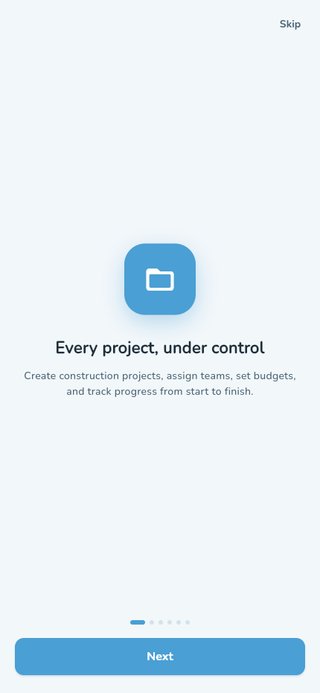
First-run onboarding carousel after the first login
Projects & Multi-Phase
All plans Multi-phase: Professional+Every project tracks location, budget, dates, documents, finances and progress in one place. A large job (a township, a multi-block campus) can be split into phases — each with its own site engineer, materials, expenses and DPRs — without consuming extra project slots on your plan.
Use case: A 200-unit township is one contract but four site engineers each run one block. Splitting it into four phases gives each engineer their own materials and progress tracking, while the owner still sees the township roll up as a single project.
Find it: Projects tab → open a project → Overview (multi-phase toggle) → Phases tab.
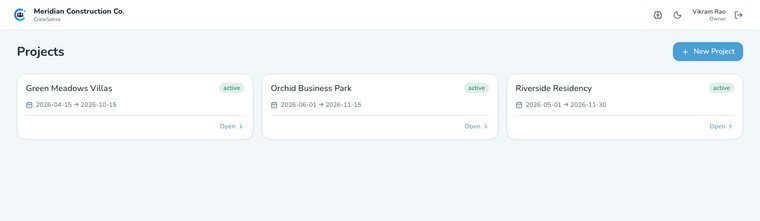
Projects list with budget, progress and site engineer per project
Bill of Quantities (BOQ)
Professional+ Task/DPR integration: EnterpriseA contract's priced item list, tracked per project through a Draft → Active → Closed lifecycle. Items can be seeded from an approved estimate, and mix original contracted scope with post-award extra items. On Enterprise, a BOQ's status can be updated straight from a task update, and every DPR carries a read-only BOQ status snapshot. Not yet built: RA billing, measurement sheets and certification — today's BOQ is the priced item list and its lifecycle only.
Use case: A Quantity Surveyor adds 40 contracted line items to a BOQ, activates it once the contract is signed, and later raises three extra items for a client-approved scope change — all tracked in one list instead of a spreadsheet nobody else can see.
Find it: Project detail → BOQ tab.
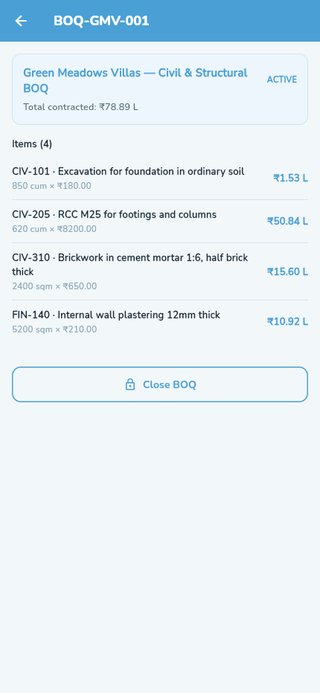
An active BOQ with contracted items, quantities and rates
Task-Based Progress Tracking
All plansTasks are grouped by floor into a connected "Site Timeline" — On Track / Due Soon / Overdue counts, then one waypoint per floor. Completing a task requires a proof photo, and overall project progress is the average of every task's completion.
Use case: A site engineer marks "3rd floor slab casting" complete and attaches a site photo. The floor's card updates instantly, and the project's overall progress percentage — visible to the owner and the client — moves with it.
Find it: Project detail → Progress tab, or the standalone Work Progress screen.
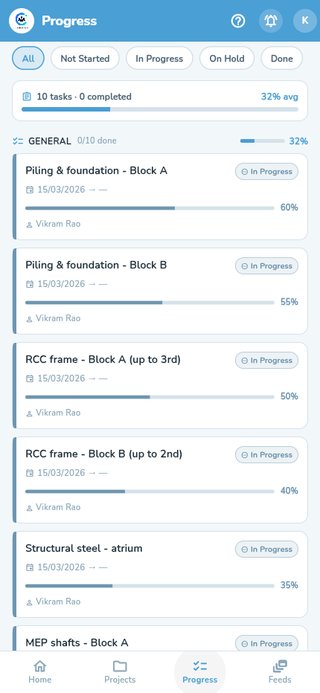
Cross-project task progress with on-track/in-progress status
Daily Progress Reports (DPR)
All plansOne report per project per day, auto-assembled from the day's tasks, attendance (staff + contractor, merged), material usage and site photos — there's no data-entry form. You only supply weather, and optionally issues and a site note. Goes through an approval workflow and generates a branded, shareable PDF. On Enterprise, a BOQ status section and an Equipment-on-site section are included automatically when relevant.
Use case: At 6 PM a site engineer taps "Generate today's DPR", picks "Sunny", and sends it — the report already has today's attendance, materials used and photos filled in. The client gets a branded PDF the moment it's approved, without anyone re-typing what happened on site.
Find it: Project detail → DPR tab → Generate today's DPR, or the Home screen's DPR card.
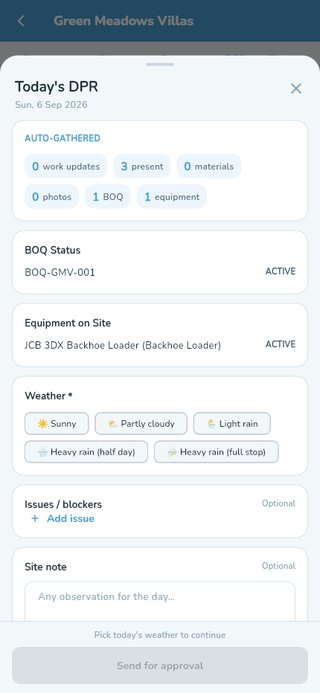
Generating today's DPR — auto-gathered attendance, BOQ and equipment
Document Management
All plansUpload building plans, floor plans, structural/electrical/plumbing drawings, elevations, approvals, contracts and more against a project, organised by category. Every document is encrypted at rest (see Data Security).
Use case: The architect revises the electrical plan mid-project. The admin uploads the new version under "Electrical Plan" so every site engineer opens the current drawing instead of working off a printed copy from three weeks ago.
Find it: Project detail → Documents section.
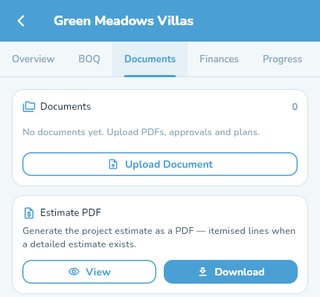
Project documents screen with upload and estimate PDF actions
Site Location & Route Planning
All plansPin a site's location (stand there and use your device's position, or paste a Google Maps link) and get a one-way, nearest-first route across every site you're assigned to that day. Sites with no pin are listed separately so you know what still needs one.
Use case: A senior engineer supervising 6 sites opens "Plan Route" each morning and gets the nearest-first order for the day, instead of guessing which site to visit first and backtracking across town.
Find it: Project → Overview (pin a site); Home → Site Tools → Plan Route.
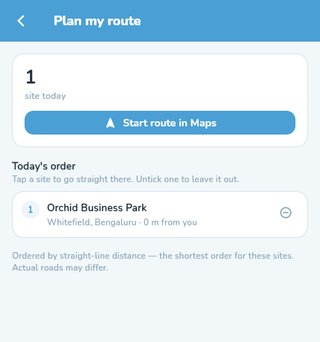
Today's route ordered nearest-first across assigned sites
Building Plan (Floor Layout)
All plansA per-floor layout canvas under each project, separate from the task-progress list — add a floor here to start drawing/positioning its layout. Marketed on pricing as "Plan Visualizer."
Use case: Before construction starts on a new floor, the engineer adds it here to lay out the plan visually, giving the team a shared reference beyond the printed architectural drawing.
Find it: Project detail → Building Plan tab.
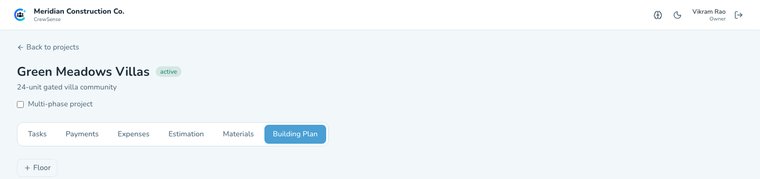
Building Plan tab — add a floor to start drawing its layout
Attendance
All plansMark directly-employed workers Present/Absent/Half-day, log anonymous casual headcount by skill, and record the headcount a contractor supplied — each feeding straight into the matching Salary report. History is browsable by day, and exports to Excel/PDF or WhatsApp.
Use case: A site admin marks 18 masons present each morning in under a minute. By month-end, that daily habit alone is what the Salary screen uses to calculate everyone's pay — no separate attendance register to reconcile.
Find it: Home → Site Tools → Attendance.
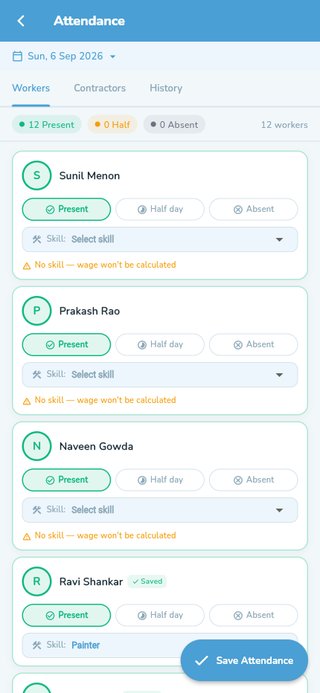
Marking daily attendance for site workers by skill
Contractors (Thekedar) Tracking
Growth+Add a labour contractor, assign them to a project, and set per-skill agreed rates (defaulted from the district contract-labour wage table). Once assigned with rates, their supplied workforce is attendance-ready and their dues flow into payroll automatically.
Use case: A masonry contractor supplies 12 masons to a site. The admin sets their per-mason day rate once; every day the site admin logs "12 masons, full day" and the contractor's running dues update themselves.
Find it: Admin hub → Operations → Contractors.
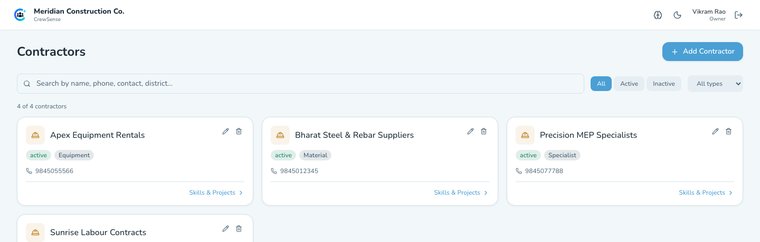
Contractor directory with type, status and contact details
Salary & Payroll
Growth+Staff, Contractor and Casual payroll in one place, filterable by month/week/custom range, with per-worker gross/advances/net-payable drill-downs priced using the wage rate effective on each attendance date. Site admins only ever see payroll for attendance they personally recorded.
Use case: Month-end arrives and the admin opens Salary, filters to the last 30 days, and sees exactly what's owed to every worker and contractor — including anyone who took an advance mid-month — without touching a calculator.
Find it: Project detail → Finances tab → Manage → Salary.
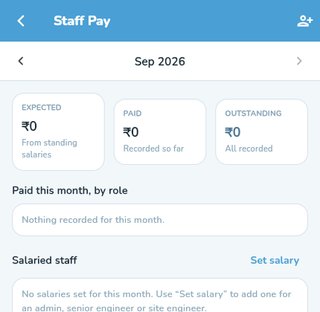
Staff Pay screen for admins, senior and site engineers
District Wage Rates
All plansSet per-district, per-skill daily wages for both directly-employed and contract labour — these auto-fill rates across Salary and new contractor setup.
Use case: A company running sites in two districts sets a mason's day rate once per district. Every new worker or contractor added in that district picks up the correct local rate automatically, instead of someone guessing what to enter.
Find it: Management → My Company → Skill Wages.
Staff Leave & Approvals
EnterpriseAdmins, senior engineers and site engineers can raise a leave request and track its approval; owners/admins review and approve or reject with a note. Separate from daily labour attendance — this is for the company's own salaried staff.
Use case: A senior engineer requests 3 days of leave for a family event. The admin sees it in the Leave queue, approves it, and it's on record — no back-and-forth over WhatsApp about who's covering which site.
Find it: Leave section (Enterprise-only; hidden below that plan).
Materials & Stock
All plansPer-project stock levels with low-stock badges, a usage log of what's been consumed, and material requests that route to an admin for approval.
Use case: Cement stock on a site drops below the threshold after a big pour. The Materials screen flags it with a low-stock badge before the site admin even has to check manually.
Find it: Project → Overview → Materials.
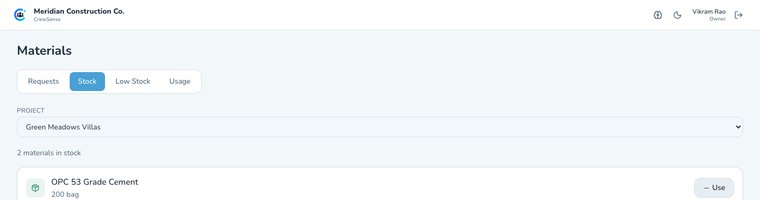
Current material stock levels for a project
Purchase Sessions
All plansThe buying step between an approved material request and its stock/expense records — record the vendor, line items and any freight/misc charges. Depending on how far the purchase drifts from the approved request, a session auto-approves or is routed to review.
Use case: A site admin buys the approved 200 bags of cement but the vendor charges a small delivery fee not in the original request. Because it's within the configured variance, the purchase auto-approves instead of sitting in a review queue.
Find it: Opens automatically from an approved material request.
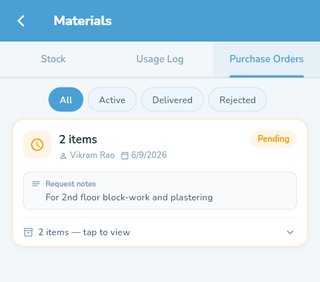
Purchase orders raised against an approved material request
Material Catalogue
Growth+Your organisation's own list of materials with a fixed unit per item, so "Cement", "cement" and "OPC 53" stop arriving as three different things nobody can total. Seeded with ~43 standard items on day one; edit, retire and restore your own copy — it never touches another org's list. On Starter, requests still work with free-text name and unit.
Use case: Before the catalogue, three site engineers requested "cement" three different ways and nobody could total company-wide cement spend. Now every request picks from the same list, so the number actually means something.
Find it: Management → My Company → Configuration → Materials.
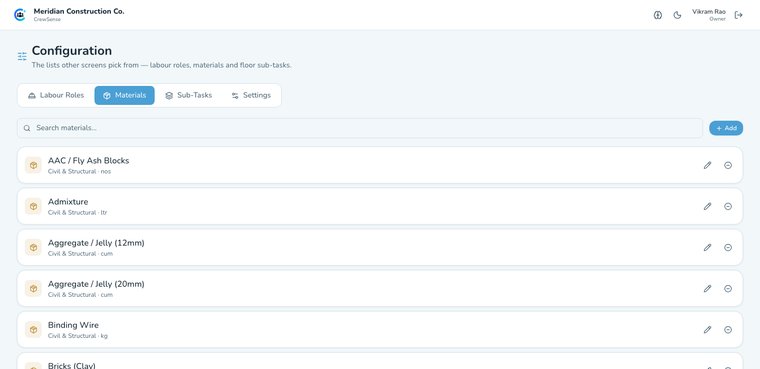
Organisation's material catalogue with unit per item
Material Requests Approval
All plansA queue of pending material requests for an admin to approve or reject, with an optional note either way.
Use case: A site admin requests 50 bags of cement. The admin sees it in the Approvals queue that evening, approves it with one tap, and the site can order first thing next morning.
Find it: Approvals tab → Material Requests.
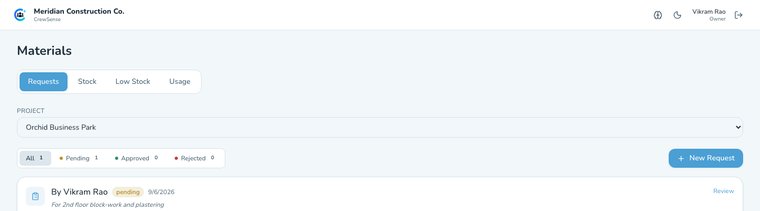
A material request awaiting admin approval
Online Store & Procurement
All plansBrowse vendors with per-material rates, build a cart against a project, and send it for approval. Approved procurement orders are tracked through to delivery.
Use case: A site admin compares two vendors' steel rates side by side in the Online Store, adds the cheaper one to cart against the right project, and sends it for approval — all before lunch.
Find it: Admin hub → Operations → Online Store.
Material Vendor Marketplace
Coming soonA platform-wide, district-filtered directory of verified material vendors — raise a deal, negotiate a single counter-offer, and track the order through to delivery per line item, separate from your own organisation's material catalogue. The underlying deal/negotiation workflow exists, but the marketplace entry point in the app is currently shown as "Coming Soon" while the vendor network is built out.
Use case (once live): A company new to a district browses the marketplace for a verified tile supplier, raises a deal for 500 boxes, accepts the vendor's counter-offer, and tracks delivery — without ever having called around for quotes.
Find it: Admin hub → Manage → Marketplace (currently marked Coming Soon).
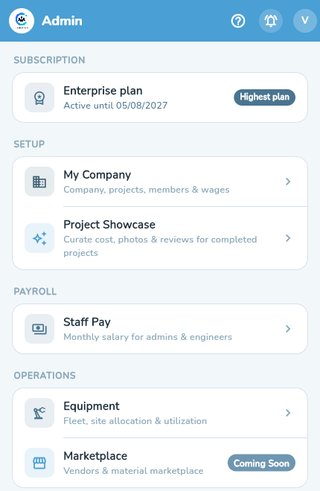
The Manage hub — Marketplace is marked Coming Soon
Equipment Management
EnterpriseA company-wide register of machinery — excavators, mixers, generators — with org-type-aware categories, ownership and depreciation tracking (book value computed on demand), and site allocation with full transfer history. A database-level guarantee means one machine can never be allocated to two sites at once. Currently a snapshot of what's on site, not per-day operating hours — daily usage logging is a future addition.
Use case: An excavator finishes at Site A and needs to move to Site B. The equipment manager taps "Transfer" — Site A's allocation ends and Site B's begins in one action, and the machine's full movement history stays intact for later reference.
Find it: Management → Operations → Equipment (hidden entirely below Enterprise).
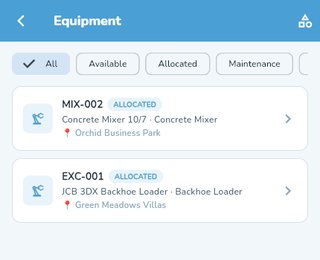
Equipment register showing allocation status per machine
Petty Cash / Site Expenses
Growth+Log site expenses by category (materials, fuel, food, transport, tools, labour misc) with up to 3 receipt photos. Org-wide expense controls can auto-approve small amounts and require a photo above a set limit.
Use case: A site admin buys ₹800 of diesel for the generator, snaps the receipt, and logs it under "Fuel" — since it's under the org's ₹1,000 auto-approve limit, it's added to spend instantly with no admin review needed.
Find it: Project → Finances → Manage → Petty Cash.
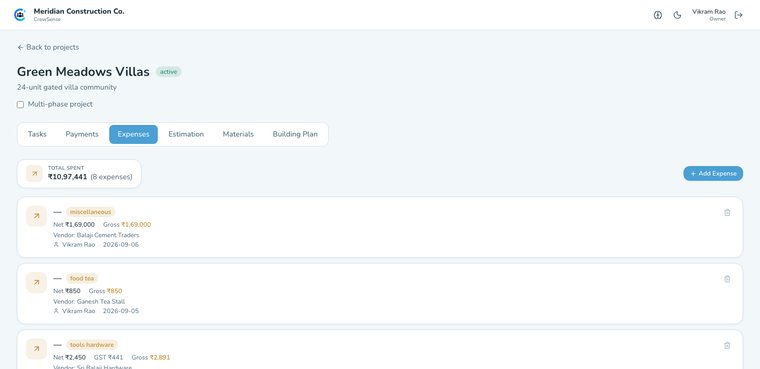
Project expenses by category with vendor and payment details
GST Invoices
Coming soonPlanned: client invoices with GSTIN details, the correct rate (5/12/18/28%), and automatic CGST+SGST vs IGST calculation depending on whether the sale is inter-state. Today, GSTIN format is validated at signup, and a vendor's own invoice can be attached to a purchase session as a file — but generating a GST invoice from within CrewSense isn't built yet.
Use case (once live): An admin raises an invoice for a milestone payment, picks 18% GST, and the correct CGST+SGST split is calculated automatically because the client is in the same state — no manual tax lookup.
Find it: Not yet available in the app — a vendor invoice file can be attached under a project's Purchase Orders in the meantime.
Approvals & Spend Control
All plansA single summary of everything awaiting sign-off — material requests and procurement orders — with badge counts so nothing sits unnoticed.
Use case: An admin opens the Approvals tab once a day, sees a badge showing "4 items awaiting approval," and clears the whole queue in a couple of minutes instead of chasing separate screens.
Find it: Approvals tab (Admin/Senior Engineer).
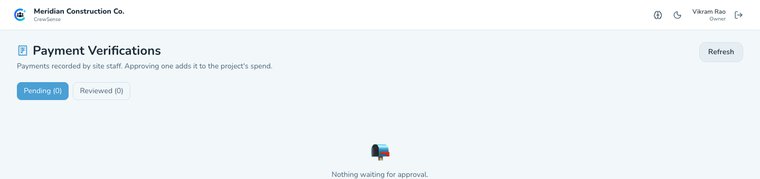
Payment verifications queue for site-recorded payments
CrewSense Advisor
Growth+, org must enable itA conversational AI over your organisation's own live data — not a single model call, but 9 specialist agents (Project, Labour, Procurement, Finance, Document, Planning, Knowledge, Reporting, Admin) routed to by a question and merged into one answer. It can chart comparable figures inline, and a handful of tools can propose a change (update a task, raise a request) that only takes effect after you tap Confirm. Chat is Admin/Owner/Superadmin only, capped at 30 questions/day per organisation.
Use case: An owner asks "did we pay the cement vendor yet, and are we behind schedule on Riverside?" — the Advisor routes to Finance and Project agents, merges both answers into one reply, and even offers to update a task's status if that's what's actually needed.
Find it: Advisor tab (app) or Advisor page (admin console); enable it first at Management → My Company → Configuration.
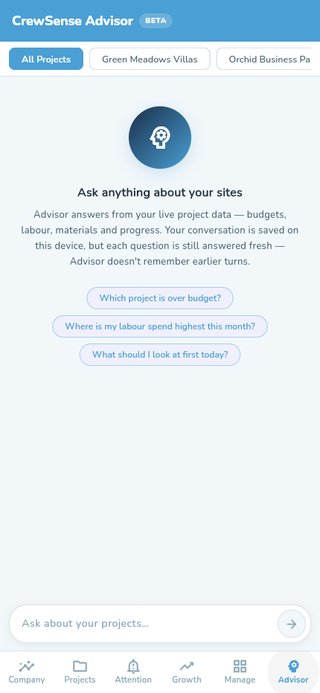
CrewSense Advisor chat with suggested starter questions
Today's Agenda
Growth+, org must enable itA proactive digest shown under the greeting on Home — "what needs your attention today" — generated once per day (plus up to 2 manual refreshes) by the same agent pipeline as the Advisor. Senior Engineers and Site Admins get it too, scoped strictly to their own assigned projects.
Use case: A site admin opens the app in the morning and sees "Cement stock is low at Riverside Residency" already waiting on the Home screen — nobody had to ask the AI, it just flagged what mattered.
Find it: Automatically on the Home screen, right below the greeting.
AI Risk Alerts & Decision Memory
Professional+A daily 11:00 AM job scans every active project for four kinds of genuine risk — task delay, material shortage, project delay, cost overrun — and raises a notification, deduplicated with a 4-day cooldown. Decision Memory lets the Advisor recall and search past logged decisions and project history.
Use case: A project quietly crosses 90% of its budget with work still incomplete. The next morning, admins get a push notification flagging the cost overrun — before it becomes a bigger surprise at month-end.
Find it: Notification bell; Advisor chat can also be asked about past decisions.
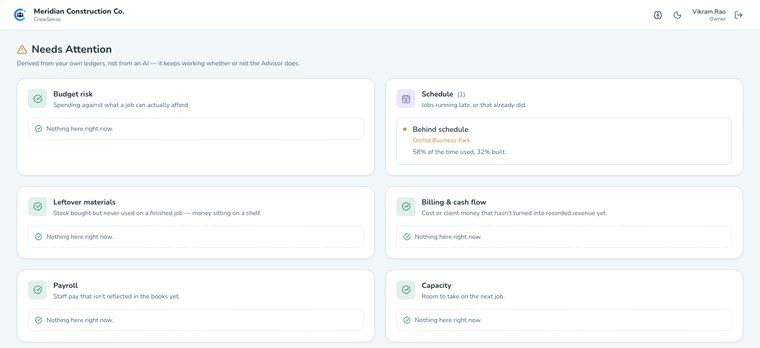
Needs Attention — a behind-schedule alert surfaced automatically
Owner Console — Company Health
Enterprise, role = OwnerReplaces the operations dashboard for the Owner with six zones answering: is the business making money, where is it leaking, which projects need attention, and how is the team performing? Covers margin (counting salary as cost, unlike every operational screen), cash flow, project profitability ranked worst-first, receivables aged by how long they've been outstanding, and team insights — attendance turnout and performance by person.
Use case: An owner opens Company Health on a Monday and immediately sees which of their 5 projects has the thinnest margin, ranked worst-first — instead of opening five separate project screens and doing the maths themselves.
Find it: Automatic landing screen for an Owner on Enterprise; switch back via the dashboard icon in the app bar.
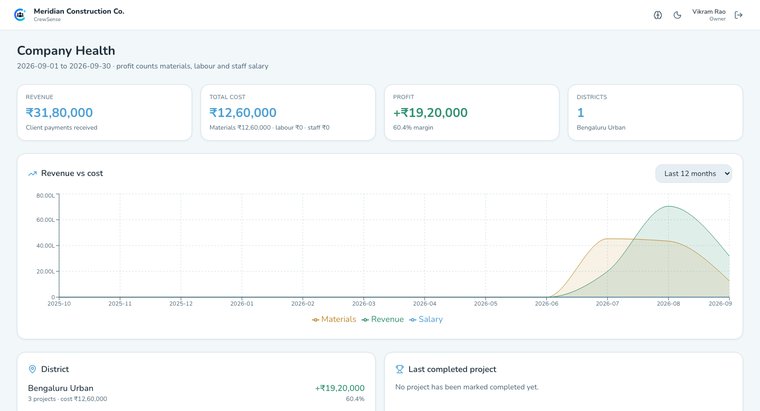
Company Health — revenue, cost and margin for the selected period
Reports & Export
All plans Custom reports: Professional+Export payments, salary, materials (stock or usage log) and attendance as PDF or Excel, share straight to WhatsApp, and generate estimate PDFs. Every export carries a consistent branded header — your logo, GSTIN, project and site-team contacts — and documents that leave the company are watermarked.
Use case: An admin needs last month's attendance for a client meeting in ten minutes. They export it as a branded PDF straight from the Attendance screen and share it over WhatsApp on the way to the meeting.
Find it: The Export action on each relevant screen (Attendance, Salary, Materials, Finances).
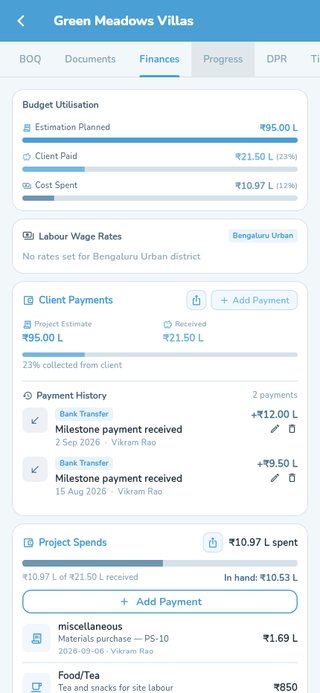
Project finances — client payments and spend in one view
Client Dashboard
Growth+ (the org must be on Growth or above to link a client)A client sees only the projects they're linked to as client on: status, budget, timeline, documents, payments, approved DPRs, and a "who to contact" card with a one-tap call button for the assigned site team. Once a project is completed, they can leave a star rating and review. The client's own account is always free — it's the construction company's plan that must be Growth or above before a client can be linked to a project.
Use case: A house-owner wants a quick update at 9 PM. Instead of calling the site engineer, they open their project in the app and see today's approved DPR, complete with photos, already waiting for them.
Find it: My Projects tab on a client account.
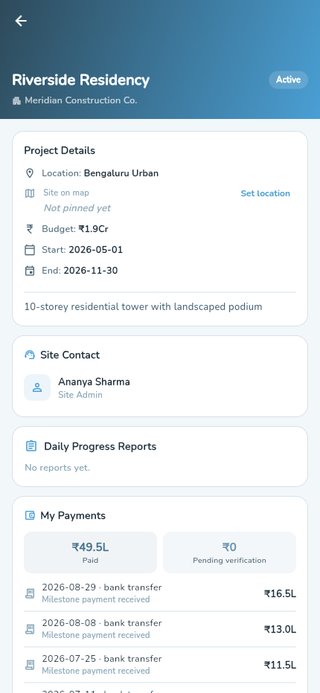
A client's view of their project — site contact, DPRs and payments
Cost Estimator
All plansA 4-step wizard (location, building size, quality tier, extras) that produces a low/high cost range with a 6-category breakdown — self-service, for anyone evaluating a build.
Use case: Someone planning a 2,000 sqft house picks their district, floor count and a "Standard" finish, and gets a low/high budget range in under a minute — before ever contacting a contractor.
Find it: Estimator tab on a client account.
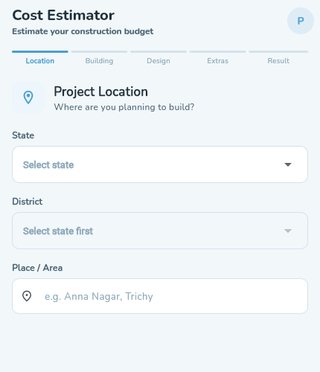
The 4-step cost estimator wizard for a prospective build
Company Directory
Coming soonPlanned as a public, no-login directory of construction companies with ratings, years active and project counts — for prospective clients browsing, and for sharing a company's public profile link. The Companies tab exists on a client account today, but currently shows a "Coming Soon" placeholder while the directory is rebuilt.
Use case (once live): A prospective client browses companies in their district, sorts by rating, and opens a showcased project's public brochure — all without creating an account first.
Find it: Companies tab on a client account (currently marked Coming Soon).
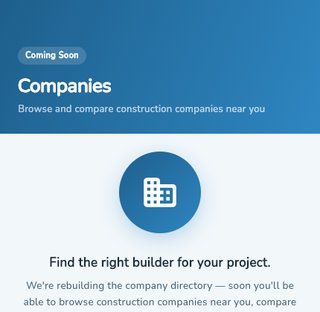
Company directory — currently marked Coming Soon
Client Plans
Basic (free) / Advanced (₹99/mo)Every client account is on Basic (free) or Advanced. Advanced unlocks reading full reviews, writing your own, and a company's work portfolio and project history. This is entirely separate from the construction company's own organisation plan.
Use case: A client shortlisting contractors upgrades to Advanced for ₹99 to read full reviews on three companies before picking one — a small cost against a multi-lakh decision.
Find it: Client profile avatar → Manage Plan.
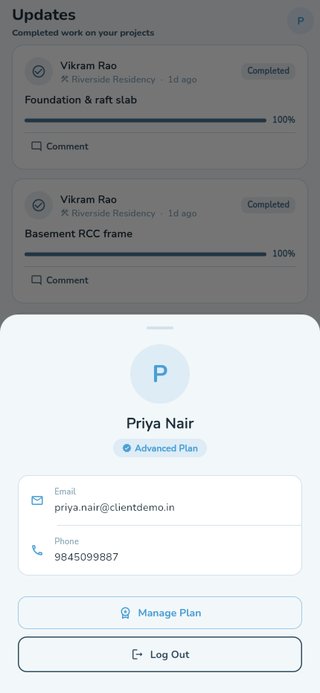
Client profile showing the Advanced plan badge
Project Showcase
All plansCurate a marketing-ready gallery of your completed projects — reorderable photos, a cover image, and a public read-only view a client can browse without logging in. Cost, staff names and phone numbers are never sent to that public view. Exports as a watermarked PDF brochure.
Use case: A company finishes a villa project, curates the best 15 photos with a cover shot, and shares the public brochure link with a new prospect — who sees a polished portfolio, never the budget or who worked on it.
Find it: Management → Project Showcase.
Project Showcase — curate a gallery once a project is completed
My Company
All plans Logo/white-label: EnterpriseFour tabs: Details (org profile, logo, force-logout-all-members), Members (per-role lists, reset password, force logout, and the BOQ Roles grant switches), Skill Wages (direct + contract wage tables), and Configuration (catalogues, expense controls, Advisor toggle).
Use case: An Enterprise customer uploads their own logo once in Details — from then on, every app screen, exported PDF and the login screen carries their brand instead of CrewSense's.
Find it: Management → My Company.
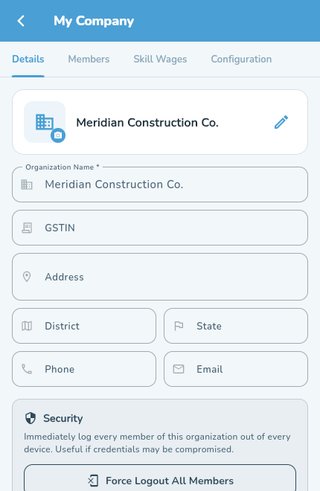
Organisation details — name, GSTIN, address and security controls
Permission Grants (BOQ Roles)
Tied to BOQ (Professional+) / Equipment (Enterprise)Five additive grants — Project Manager, Quantity Surveyor, Billing Engineer, Accounts, Equipment Manager — layered on top of a member's existing role rather than replacing it. Lets a Site Admin edit a BOQ or allocate equipment without becoming an Admin.
Use case: A trusted Senior Engineer needs to allocate equipment across sites but shouldn't see company-wide payroll. The admin grants them "Equipment Manager" only — nothing else about their access changes.
Find it: Management → My Company → Members → BOQ Roles tab.
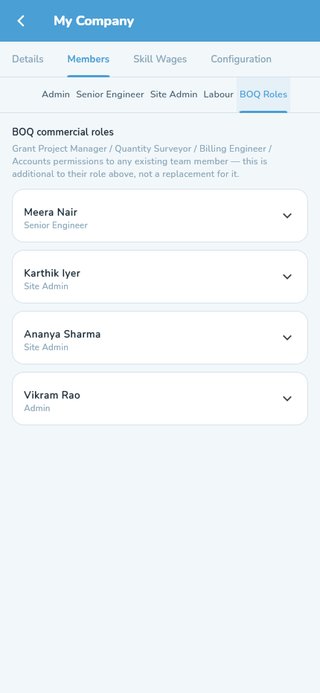
BOQ commercial role grants layered on top of each member's role
Org Catalogues (Sub-Tasks, Labour Roles, Materials)
Growth+Three lists your organisation customises: the stage sub-tasks offered when adding a floor, the labour-role/skill list used everywhere from attendance to wages, and the material catalogue. Each is seeded from your organisation type (Construction vs. Modification default to different starting sets), then it's entirely your own editable copy from there.
Use case: A renovation-focused company signs up as "Modification" type and gets sub-tasks like "Clearing" and "Wall Break" by default instead of a new-build company's "Excavation" and "Foundation" — matching the work they actually do.
Find it: Management → My Company → Configuration → Catalogs.
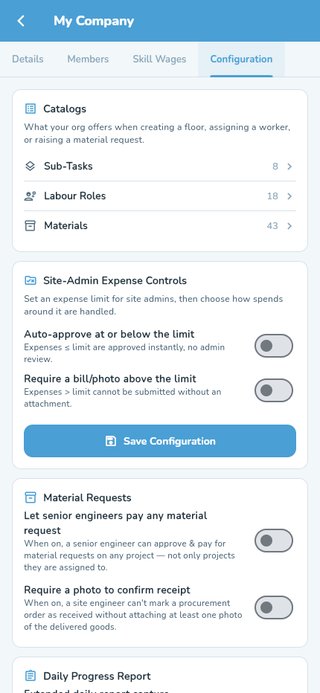
Org-wide catalogues: sub-tasks, labour roles and materials
Subscription & Plan Gating
All plansEvery organisation starts on a 28-day free trial with full access. Upgrade via Razorpay checkout (one-time or auto-pay). Once a trial or subscription lapses, admins are guided to renew and non-admins see a plain "ask your admin" message rather than a broken app.
Use case: A trial is about to end. The admin sees the trial banner, upgrades via Razorpay in under a minute, and the banner disappears immediately across the whole company — no restart, no waiting.
Find it: Profile → Subscription → Plans.
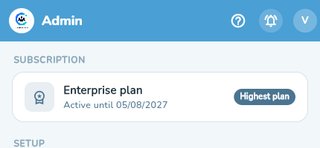
Current plan and validity shown in the Manage hub
Maintenance Mode
Platform (superadmin only)Schedule a maintenance window with a message; every logged-in user (except the superadmin) sees a full-screen "under maintenance" notice for that window, with an advance-warning push sent beforehand.
Use case: The platform team schedules a 15-minute database migration for 2 AM. Every active user gets a push warning beforehand, and the app shows a clean "back by 2:15 AM" screen instead of random errors during the window.
Find it: Superadmin-only — Admin hub → Platform → Maintenance Mode.
Push Notifications
Growth+Event-driven pushes (approvals, salary, project assignment) arrive automatically; an admin can also broadcast a manual notification to the team. Correctly scoped per account even on a shared device — logging out unregisters that device from your account.
Use case: An admin needs to tell every site team about an early Saturday start. One broadcast from Send Notification reaches every active member instantly, instead of a WhatsApp forward that some people miss.
Find it: Admin hub → Send Notification.
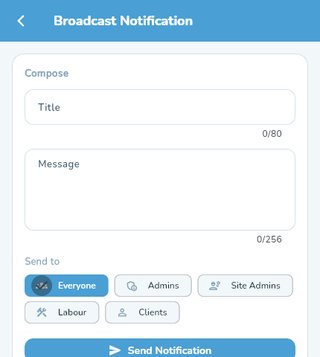
Composing a broadcast notification to the team
Calendar & Events
All plansManually added events plus automatic task-deadline reminders, colour-coded by urgency, shown on every dashboard.
Use case: A task's due date quietly passes. The senior engineer sees it flagged in red on their Home screen under Upcoming, without having to open the project and check every task manually.
Find it: The Upcoming section on Home; Add Event (Admin/Site Admin).
Activity Feed
All plansA timestamped log of completed tasks across every project, credited to whoever actually marked it done, filterable by project.
Use case: An admin scrolls the Feeds tab on a Friday to see everything that got done across all projects that week, credited to the actual site engineer who closed each task.
Find it: Feeds tab (Admin/Site Admin).
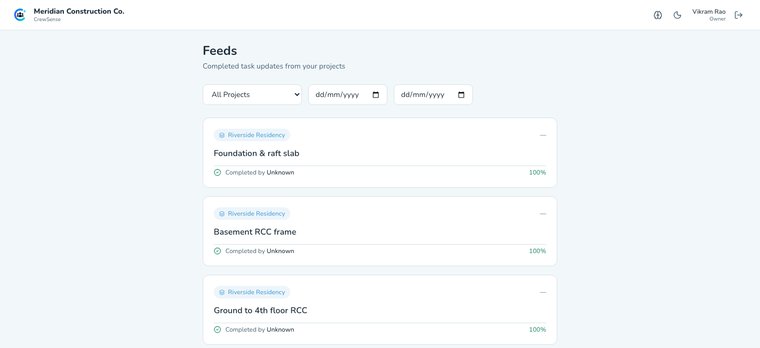
Completed task updates across every project
Profile Settings
All plansName, phone and profile photo, password change, biometric login toggle, and Light/Dark/System appearance (defaults to System, updates live if your device theme changes).
Use case: A user working at night switches the app to Dark mode from Profile — it applies instantly across every screen, and stays that way the next time they open the app.
Find it: Avatar (top-right of the app bar) → Profile.
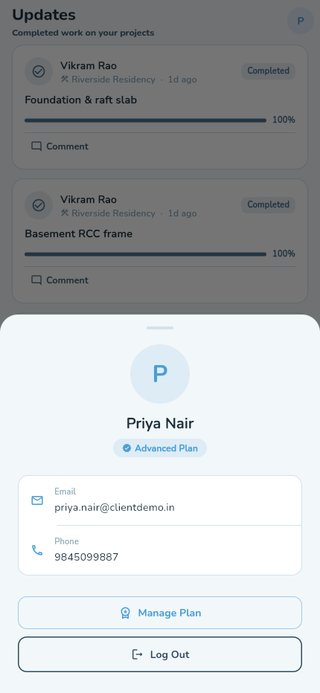
Profile sheet with contact details and account actions
Data Security & Media Encryption
All plansPasswords are bcrypt-hashed and never returned by any endpoint. Photos, documents, logos and generated PDFs use envelope encryption at rest (AES-256-GCM, wrapped by Cloud KMS) — the storage bucket holds only ciphertext. Aadhaar/PAN are encrypted at rest and only ever shown masked. Money isn't column-encrypted (it needs to stay summable/sortable in reports), so it's protected instead by tenant isolation and a database with no public IP. Everything in transit uses HTTPS.
Use case: Even if someone gained direct access to the storage bucket, every photo and document inside is unreadable ciphertext — the decryption key never leaves Cloud KMS, so a storage-level breach alone reveals nothing.
Find it: Applies automatically — nothing to turn on.
Something not covered here?
This page tracks what's actually shipped. If a feature you need isn't listed, it's either not built yet or we've missed documenting it — message us on WhatsApp and we'll point you in the right direction.
See it running on your own site
28-day free trial, no credit card required.
28-day free trial on all plans. Cancel anytime.